

Applicant Dashboard
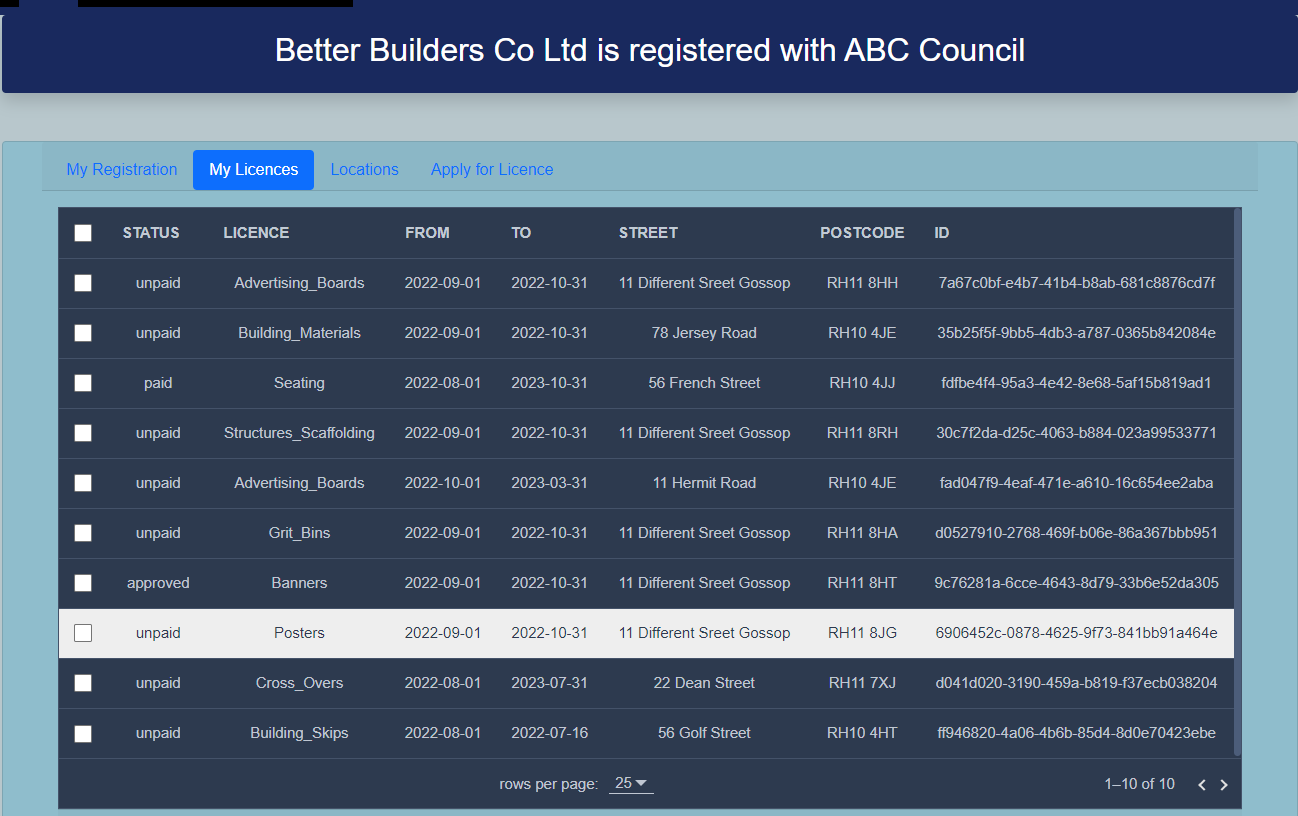
The header of the Applicant Dashboard shows the registered name of the applicant and the name of the Licensing Authority. This is important because this is the local authority that will receive any application and the licence will be issued to the applicant name as shown above. If these details are incorrect any licence that is issued with these details may be invalid. You will need to create a new registration or amend the registration name if these details are not correct.
See image below showing the registered name of an applicant (Better Builders Co Ltd) and the local authority (ABC Council)

The dashboard has tabs with six headings
- My Registration shows the registered applicant details or presents a form to create a new registration
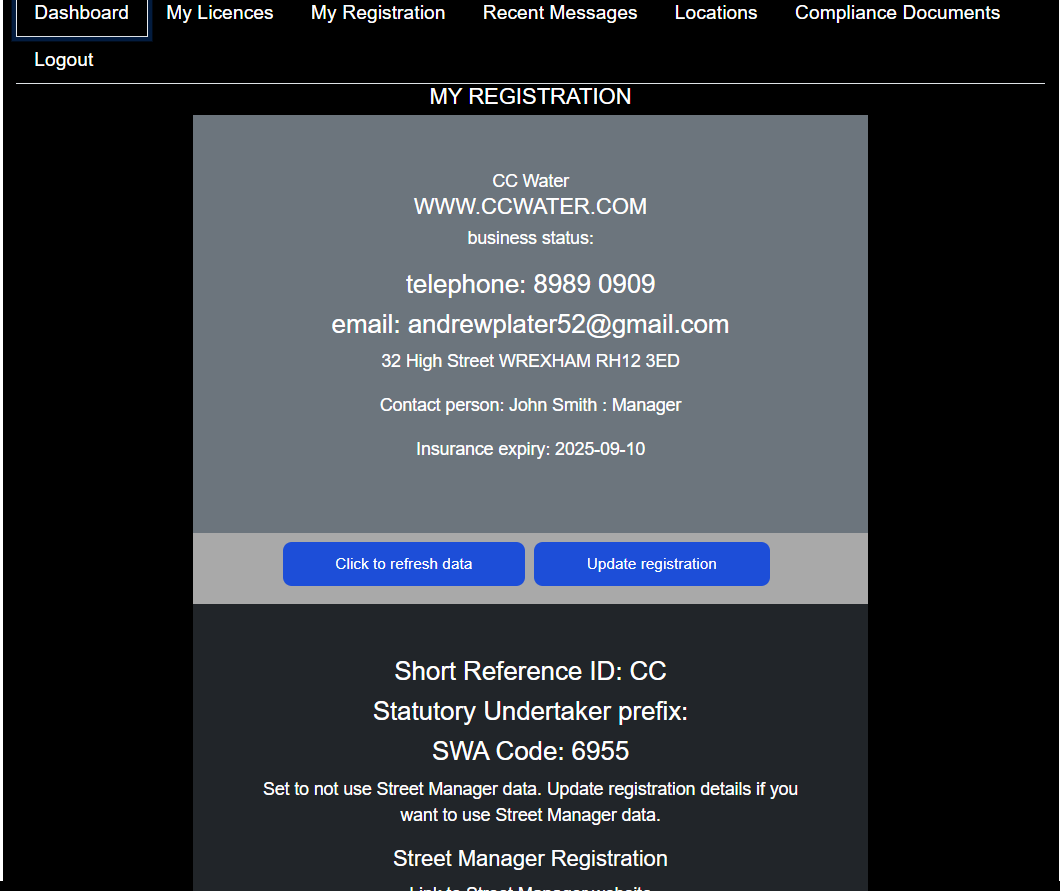
- My Licences displays a grid of licences that have been applied for
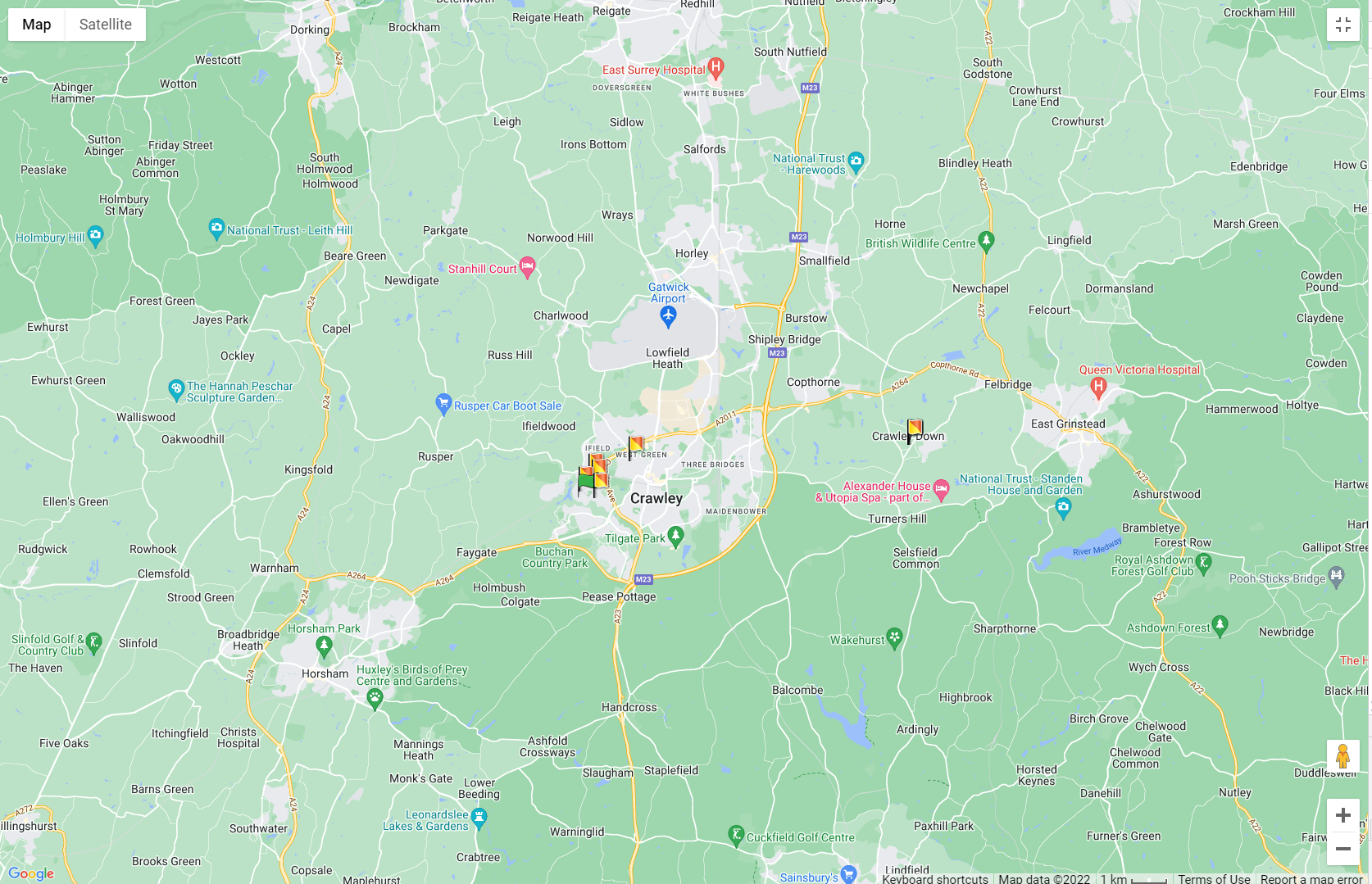
- Locations displays a map of the locations of these licences (within the local authority jurisdiction)
- Apply for Licence the application form for a new licence
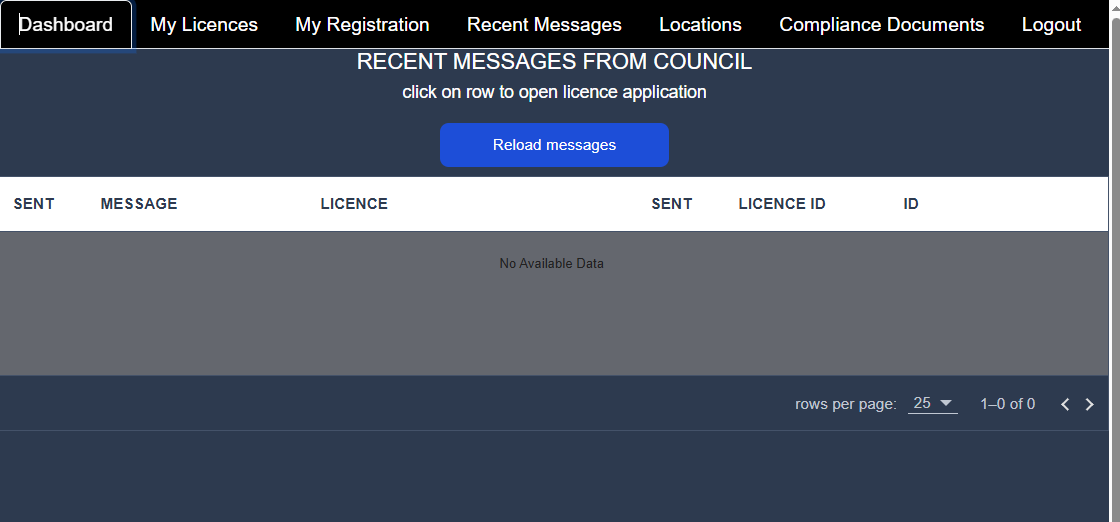
- Recent Messages is a list of recent messages from the Highway Authority
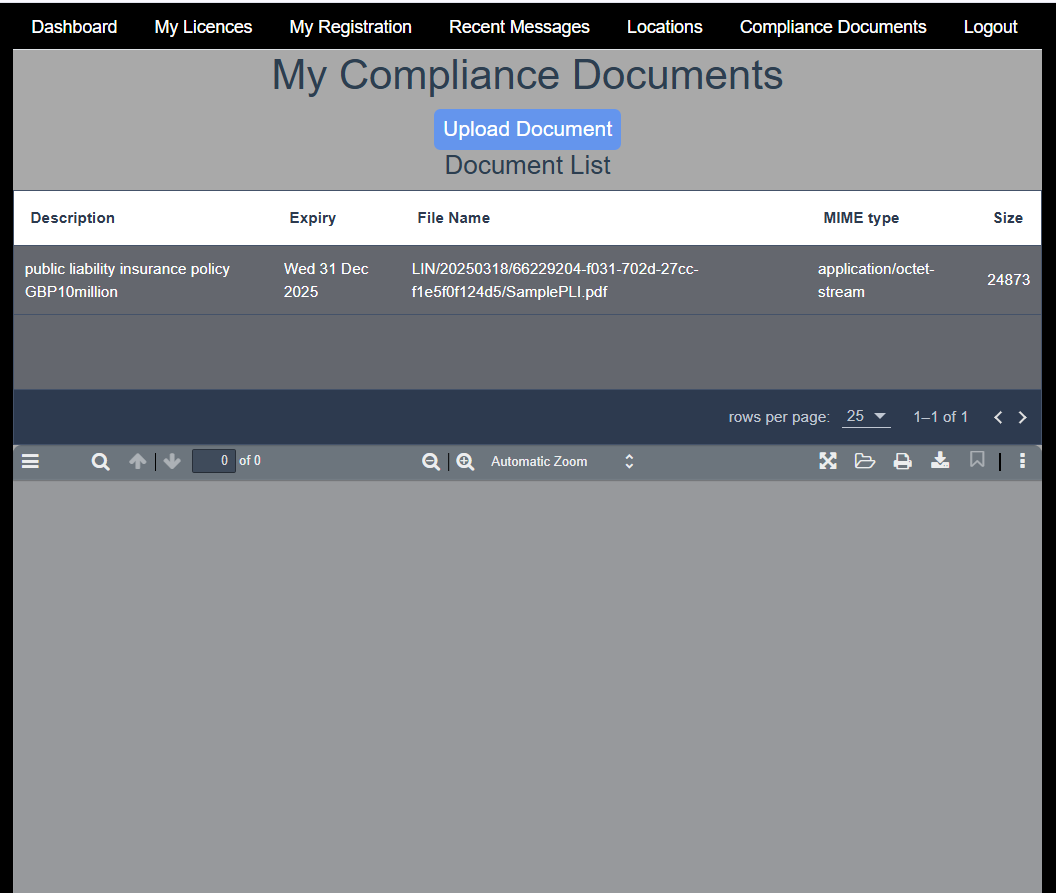
- Compliance Documents is for uploading documents such as Public Liabilitiy Insurance cover that apply to many licences. This avoids having to repeatedly uploading the same document for every application.
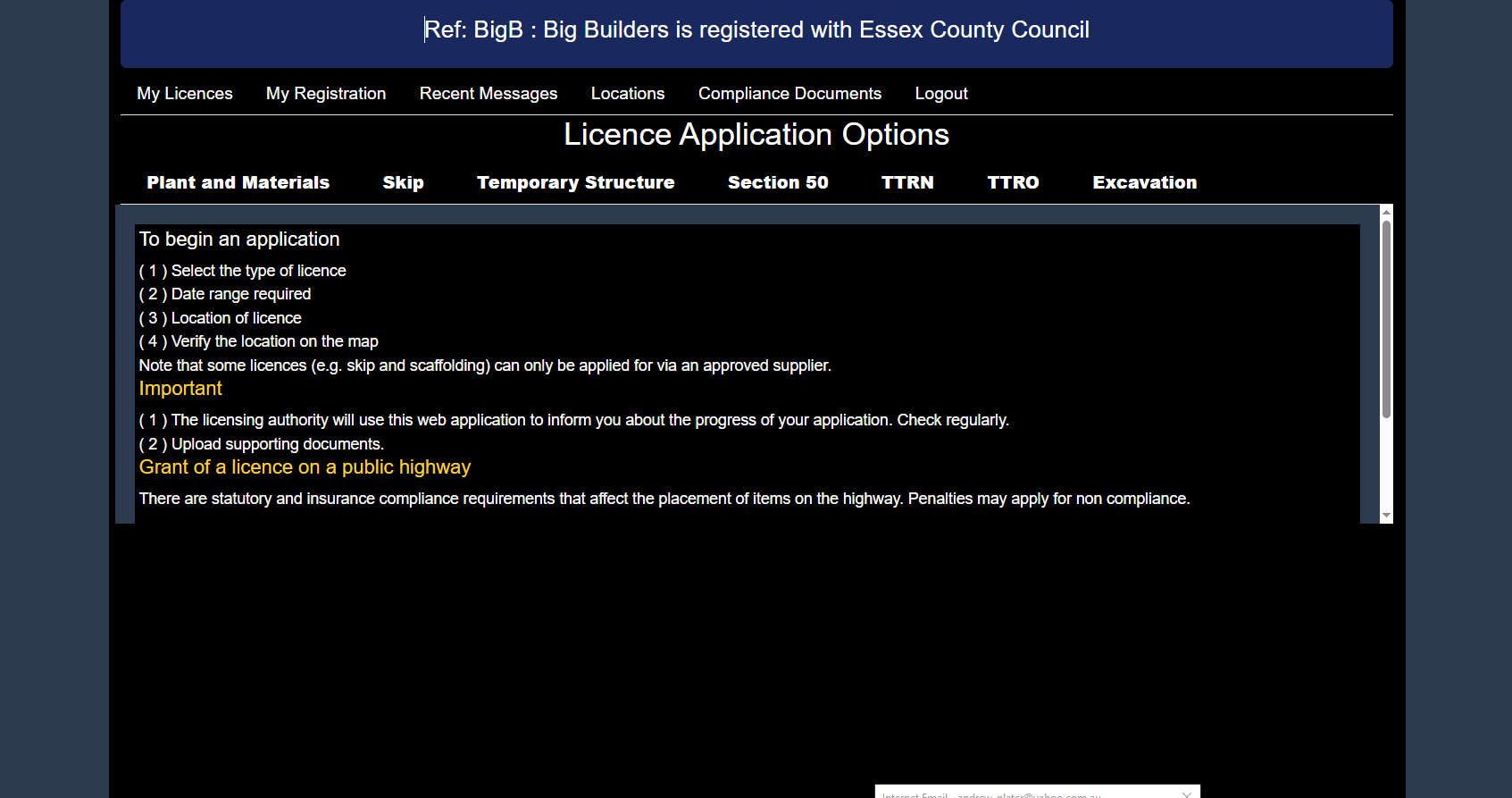
Street Manager
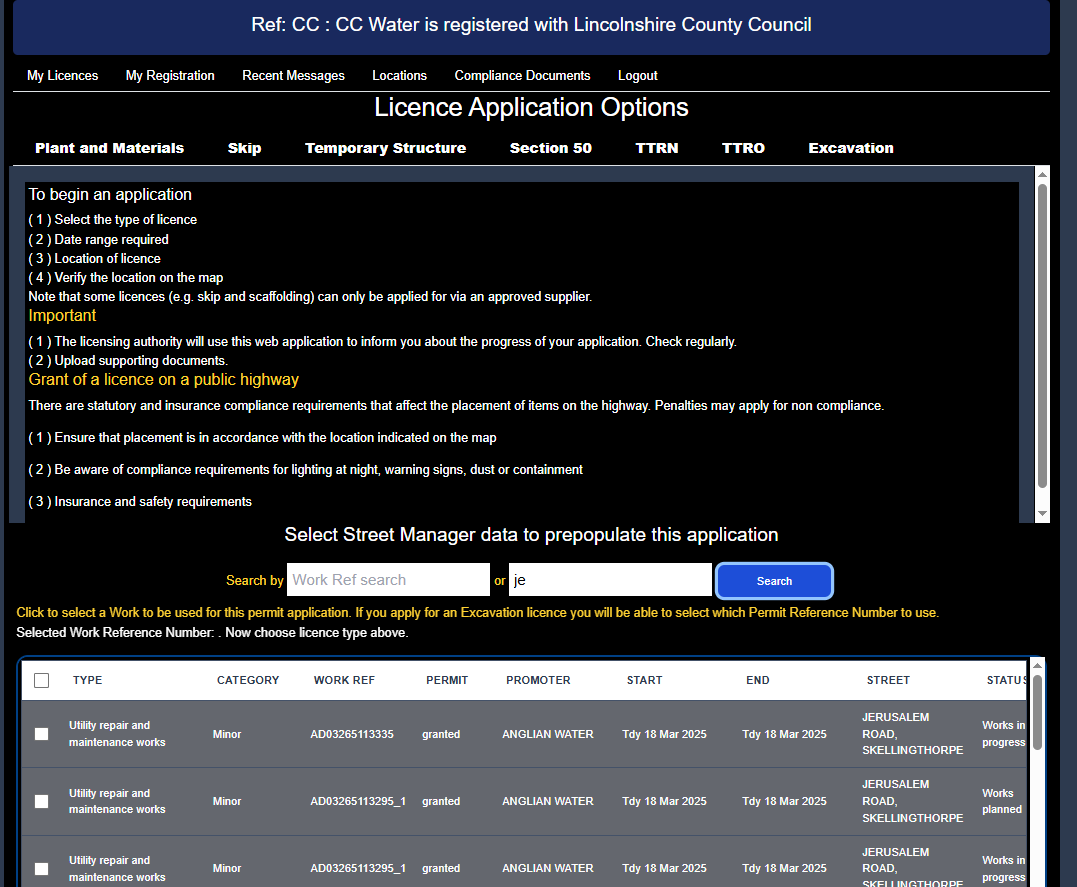
HALS is integrated with the UK Department for Transport registry of road works known as Street Manager. If your company is a statutotory undertaker registered with a SWA code you will be able to search for Street Works that have been recorded in Street Manager via the Street Manager Open Data API integration in near real time. A Street Manager Promoter or Contractor should first record planned street works in Street Manager and use the HALS search interface to find the Street Manager record and load the details imported from Street Manager into your permit application.
An example of searching for a street works reorded in Street Manager with a search by street mname is shown below. Select the specific Street Manager Works Reference Number and Permit Reference Number to prepopulate the licence application and avoid re-entering the data.
Tips
Make sure that the name of the local authority and the registered name of your business or personal name is correct for your licence applications
My Licences
The default page displays in a grid all the licences and their status. The rows can be sorted by Status by clicking on the Status heading. Click on a row to see a timeline of activiy in processing the licence application. See image below.
Licence Locations
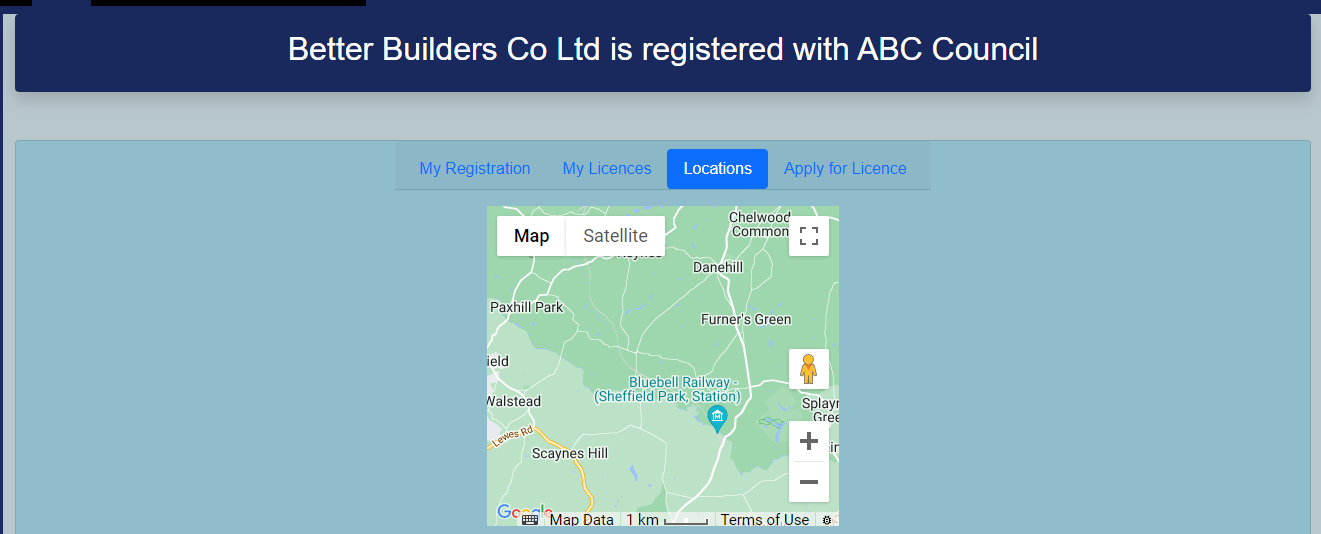
Expand the map to full screen by clicking on the square at top left of the map. Press Esc or click the X to return to a minimal map display. Use the controls at bottom left of the map to zoom in or change view. Scroll to move to a different location.
Image of expanded licence map is shown below.
Apply for a Licence
Click the name of the licence type to display the application form.
Images below show the top part and bottom part of the form.
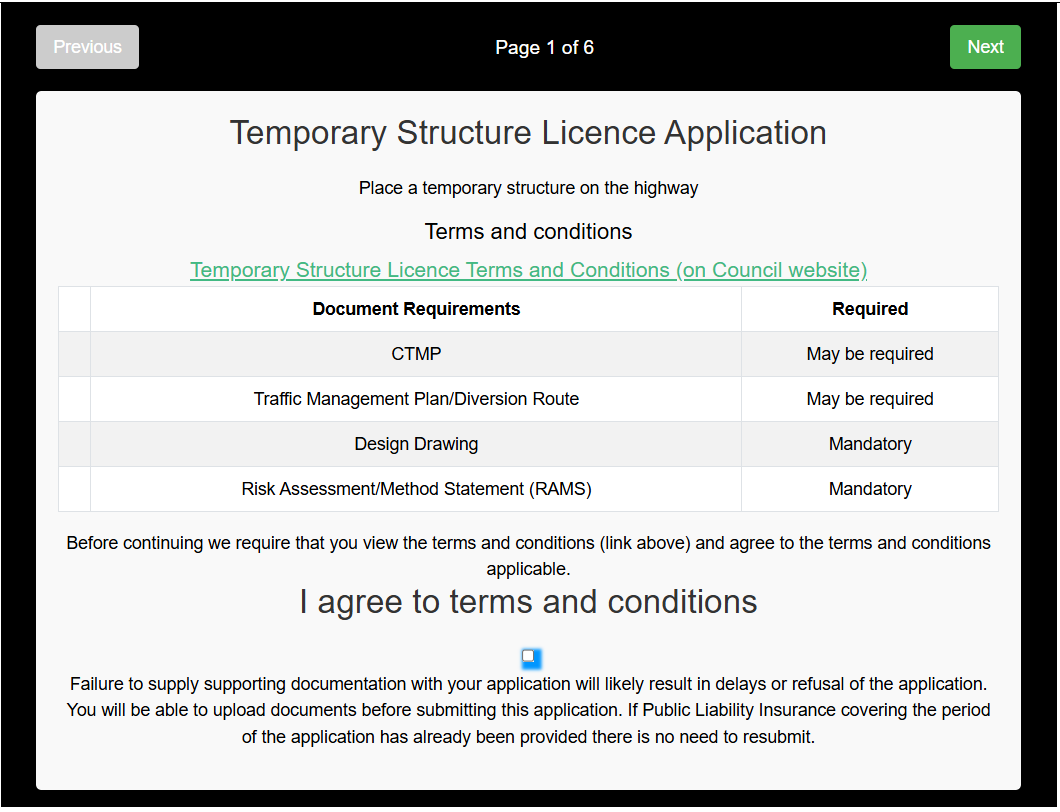 Page 1. The licence application process requires the completion of a number of pages of information. The first page has an external link to the Highway Authority website Terms and Conditions page for the licence type. There is a list of required documents to support your application that should be uploaded in pdf format with your application. Click the check box to confirm your agreement to the HA Terms and Conditions. You will be unable to proceed without consent.
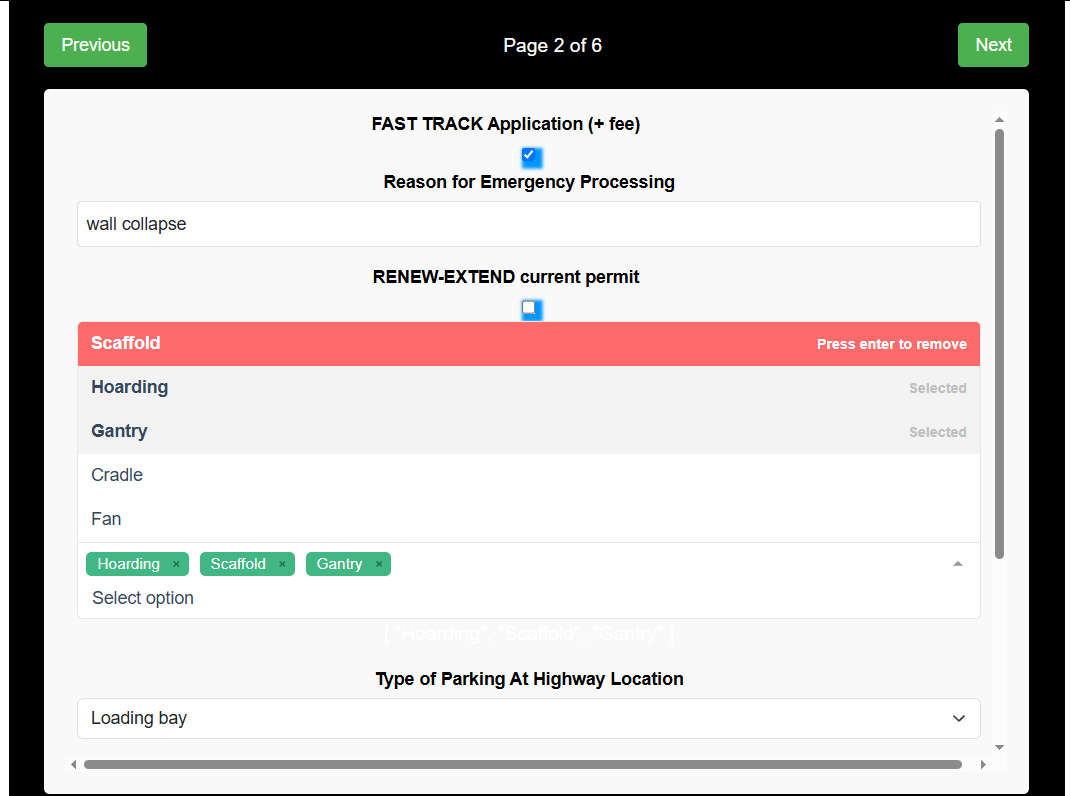 Page 2 is concerned with details about the type of licence and whether street parking will be affected. You may need to obtain a parking permit before applying for the licence.
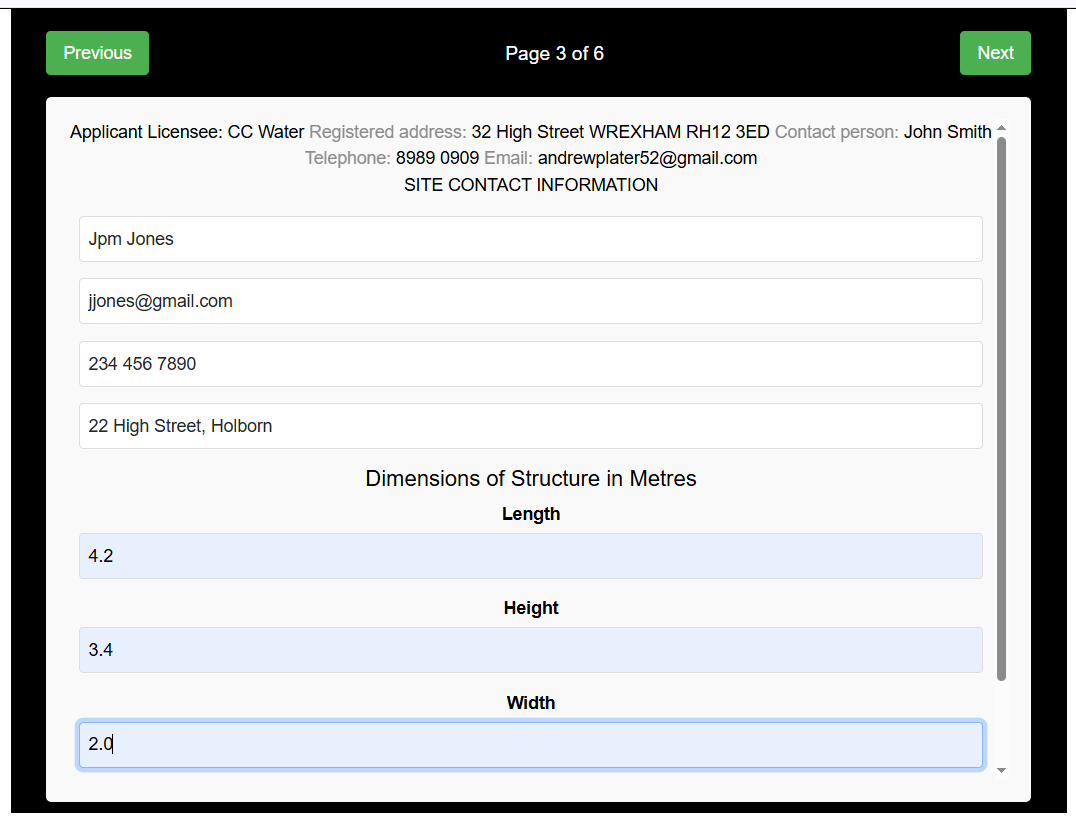 Page 3 may vary according to the type of licence but is concerned with how to get in contact with operatives at the site where the licence is located.
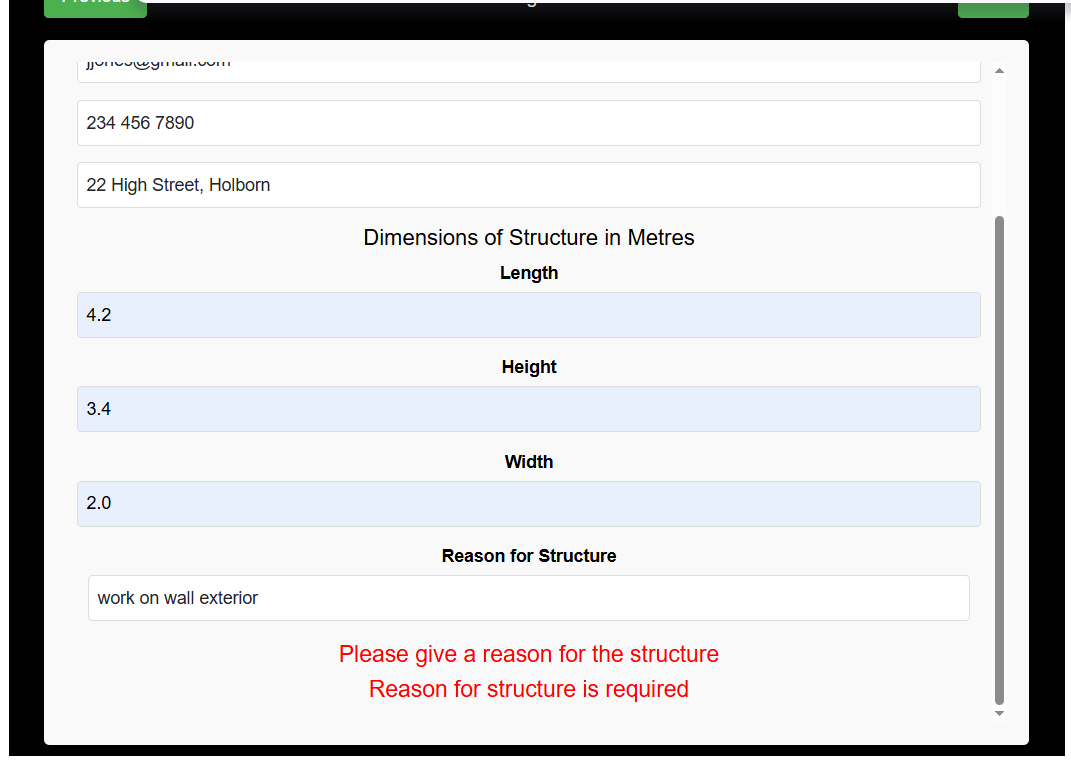 Page 3 continued.. You may need to scroll to see all the required fields.
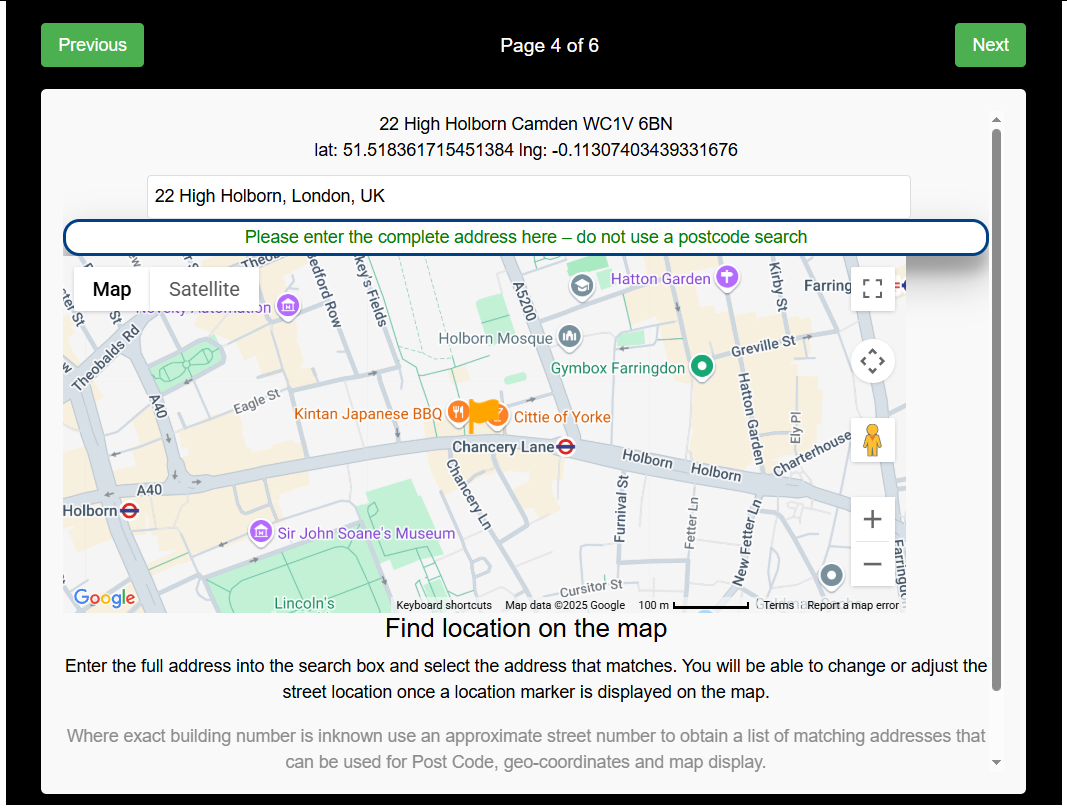
Enter a full address (street number, street name and town) using the active search box. Select the required address from the list. If the address is not found you may need to modify your details.
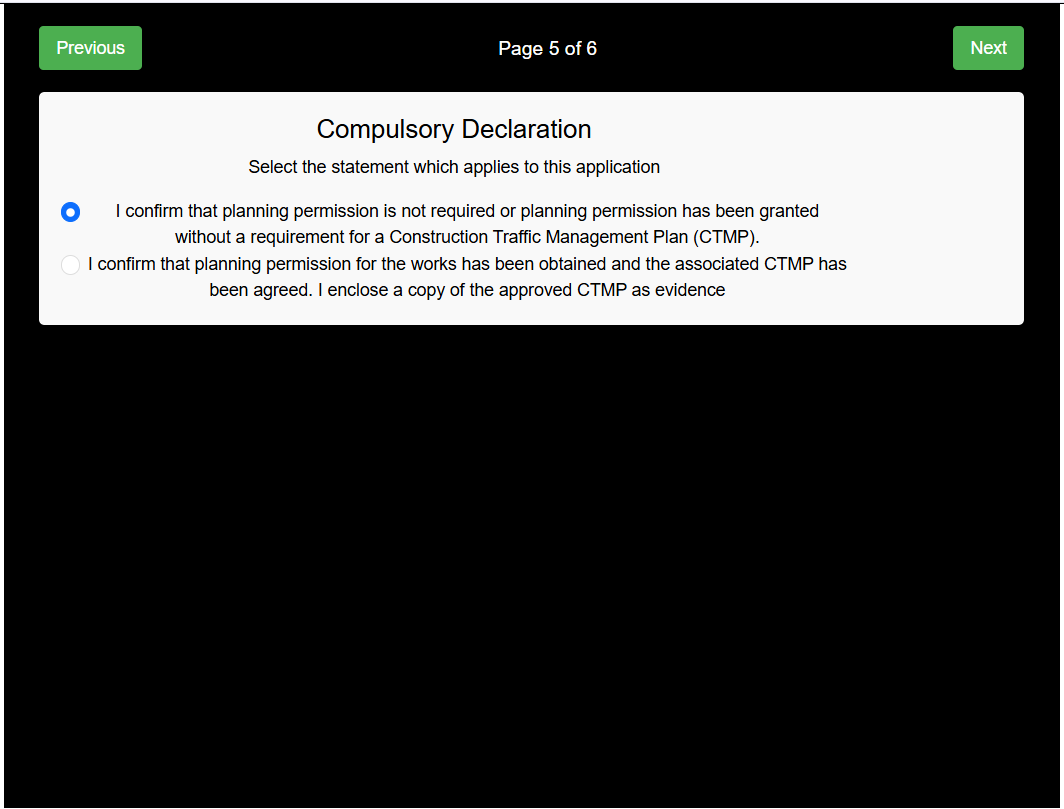 Page 5 declaration about any Construction Tradffic Management Plan requirements
 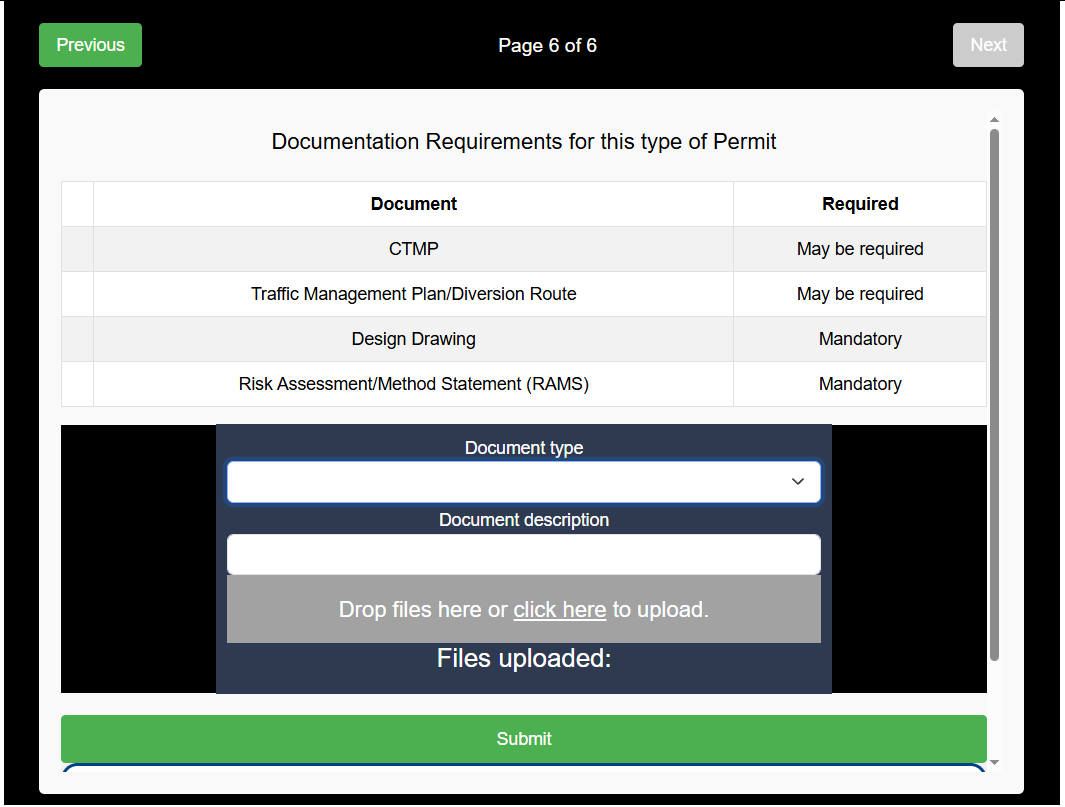 Page 6 upload required documents and click on the Submit button.
Incomplete Data
If data fields are required a warning message will display if you try to leave the page. When you have completed the data entry upload required documentation files before submitting the application for processing. A message will display to confirm that the application was submitted successfully. You now need to return to the Local Authority website to make payment for the licence.
Internal Messaging
Messages can be passed between Applicant and Highway Authority that are related to each licence. This can be used to create an audit trail of correspondance between the applicant and HA. Click on a message row to open the specified licence details.
Licence Documents
PDF Documents
View the list of pdf documents attached to this licence 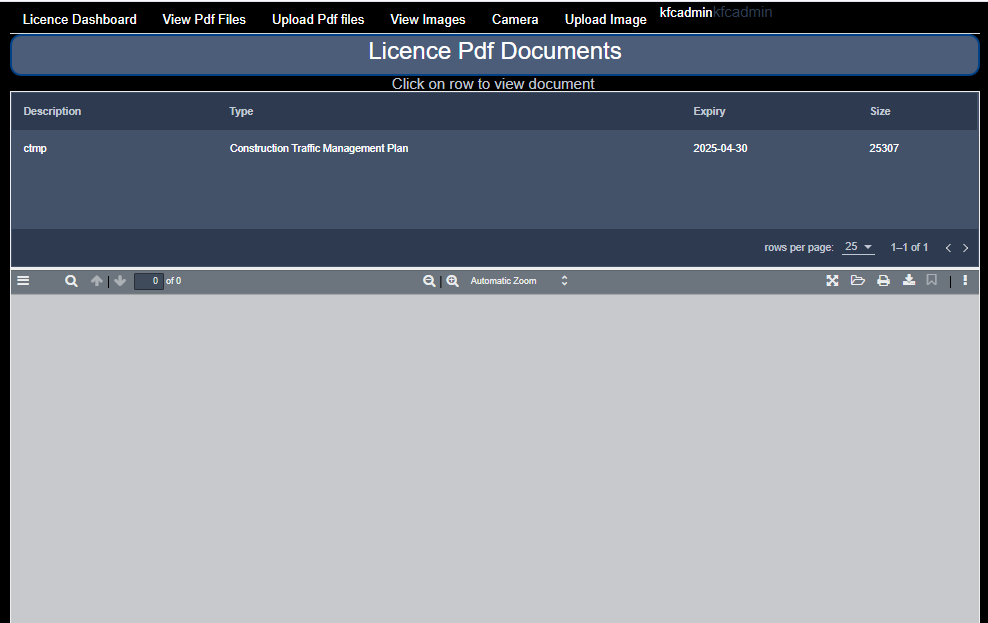
To view a document and print or save it to a local storage device, select the document by clicking on it in the list. 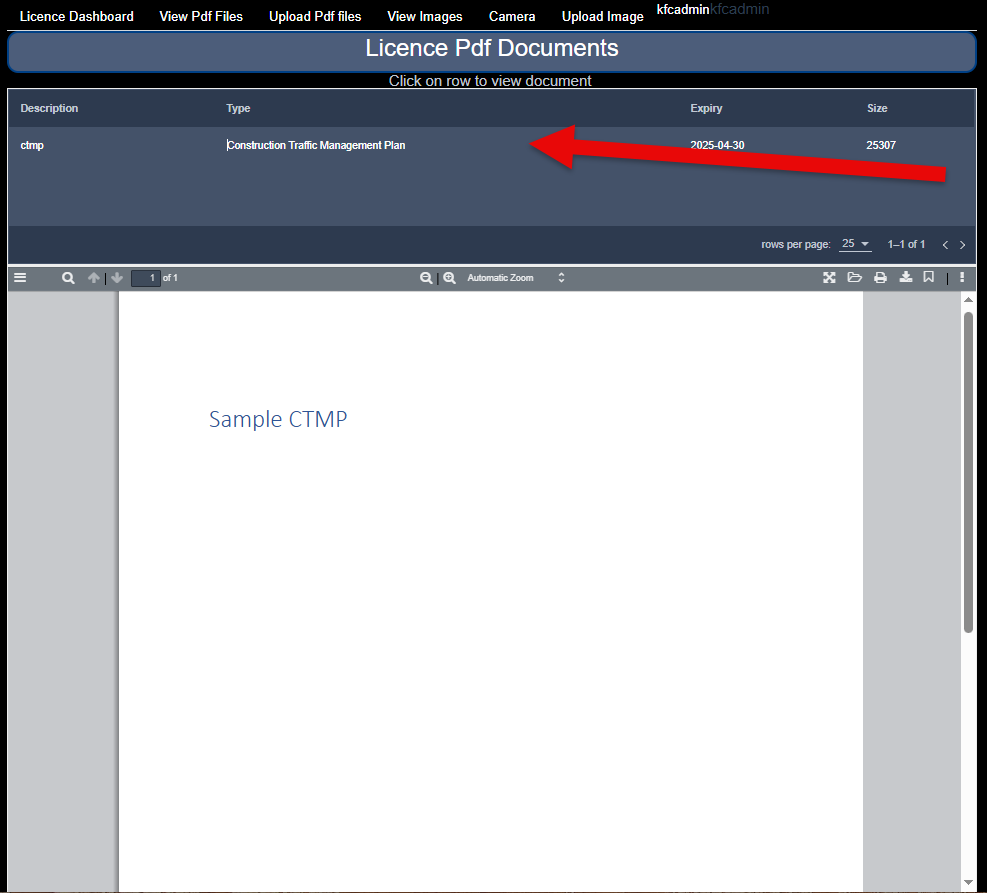
Licence Images
Compliance Documents
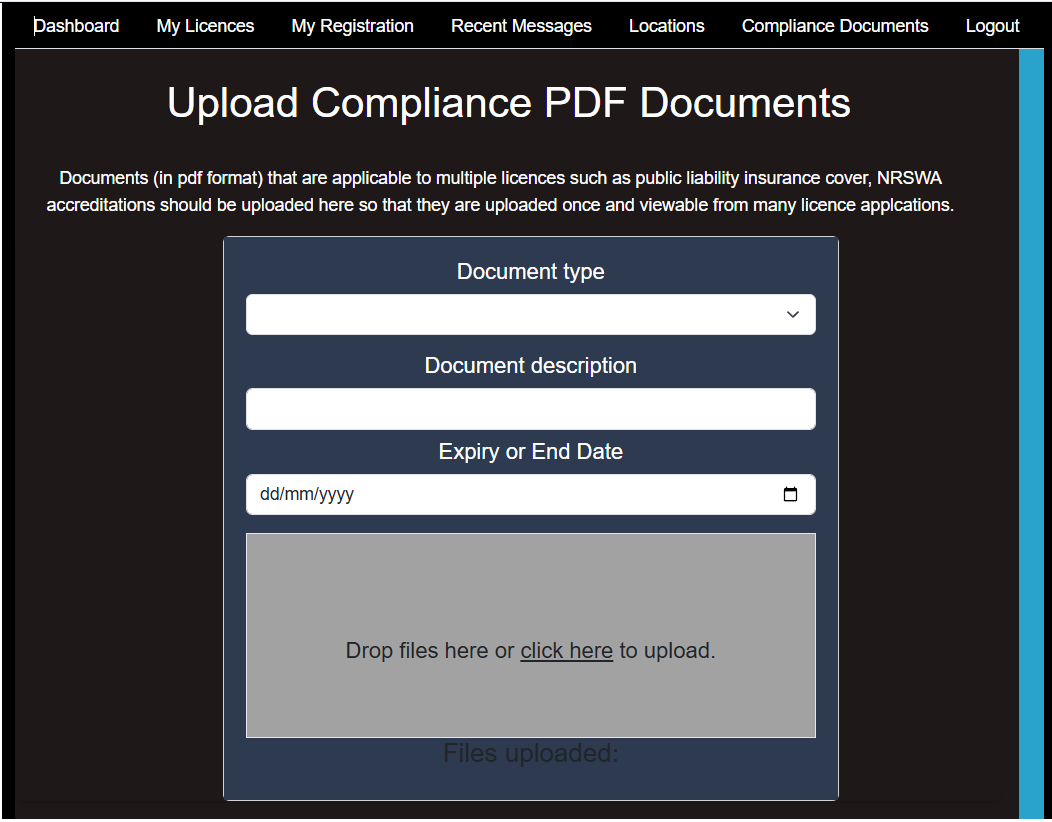 Upload compliance pdf files such as public liability insurance policy cover
Something we missed?
Please get in touch via the Contact Page if you have ideas on how we can improve the documentation or functionality of the application.