

Highway Authority Administration
Internal Messaging
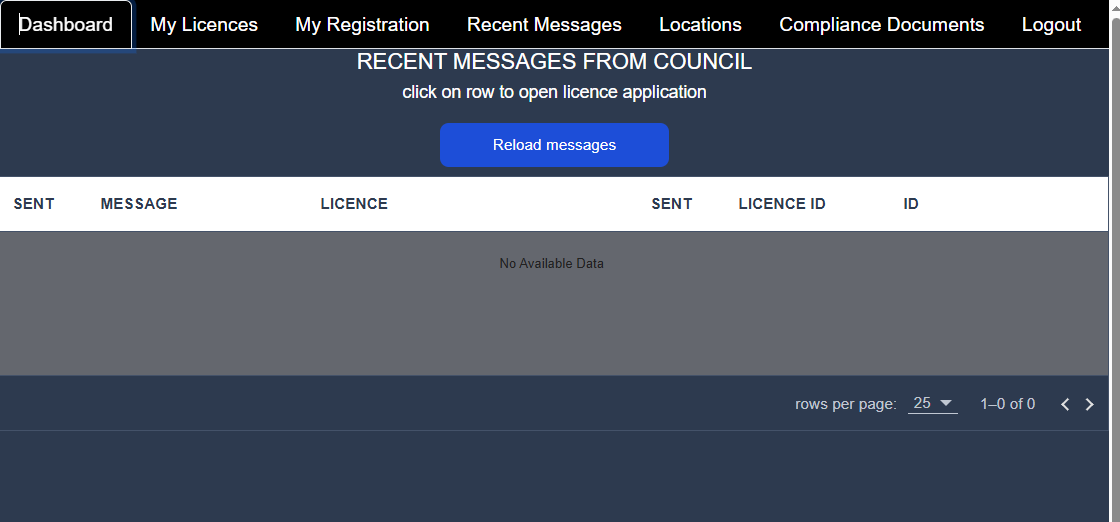
Messages can be passed between Applicant and Highway Authority that are related to each licence. This can be used to create an audit trail of correspondance between the applicant and HA.
Administrator Access
Tips
Administrators should contact Formsite once they have created a login account in order for the account to be added to the local authority group
Administrators will be able to access the administration pages via the General Search page.
General Search
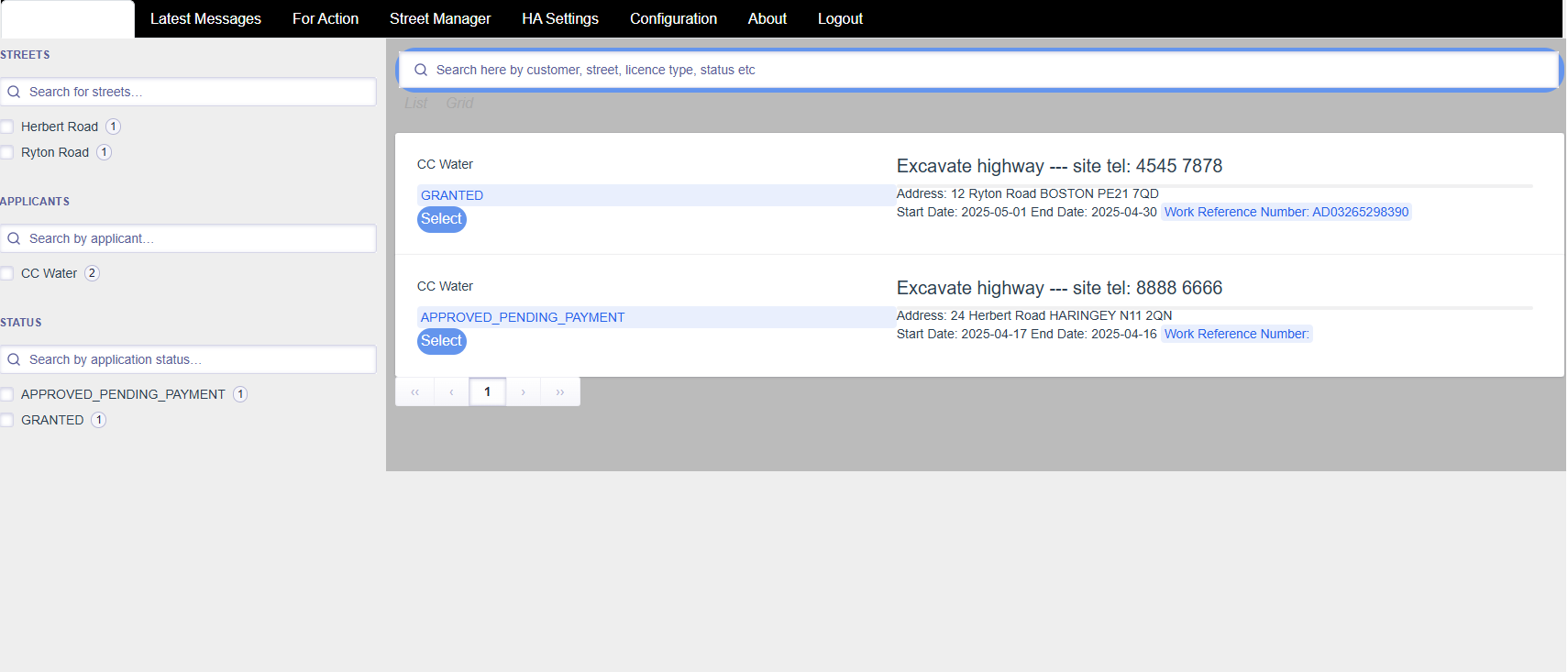
Search for licence applications
General Search uses Algolia Search for free text, fast, relevant search.
- Enter any words to include in your search without needing to formulate a search pattern.
- For instance, enter a street name to search by street, enter a licence type to search for a specific type of licence and so on.
- Use as many search parameters as needed to refine and narrow the search.
Tips
Click on a row in the grid to see the detail page
The data table will display a list of licence applications that match the selection criteria. To sort the list by status click on the STATUS header and toggle the sort order. To update a licence status click on the row where the licence is displayed.
Licence locations with mapping visuals
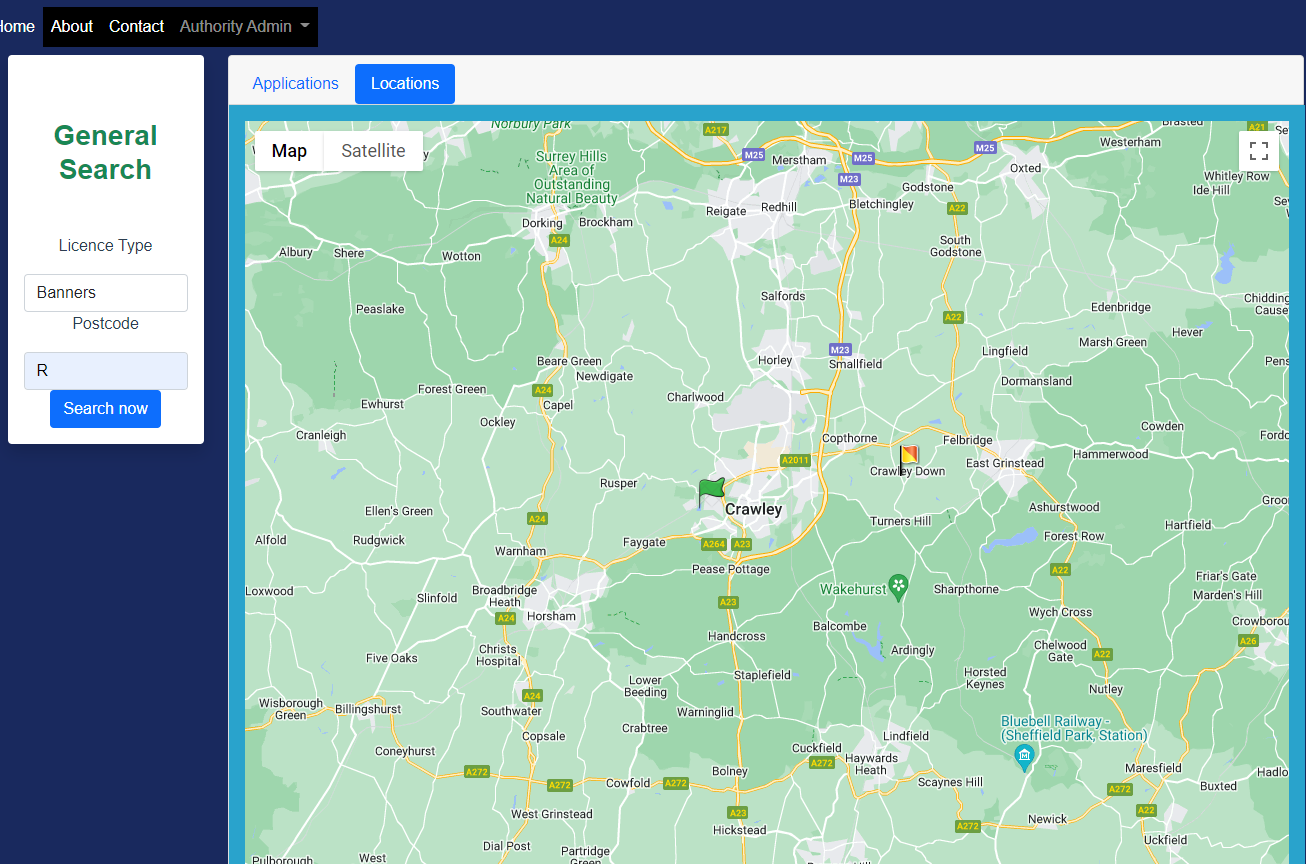
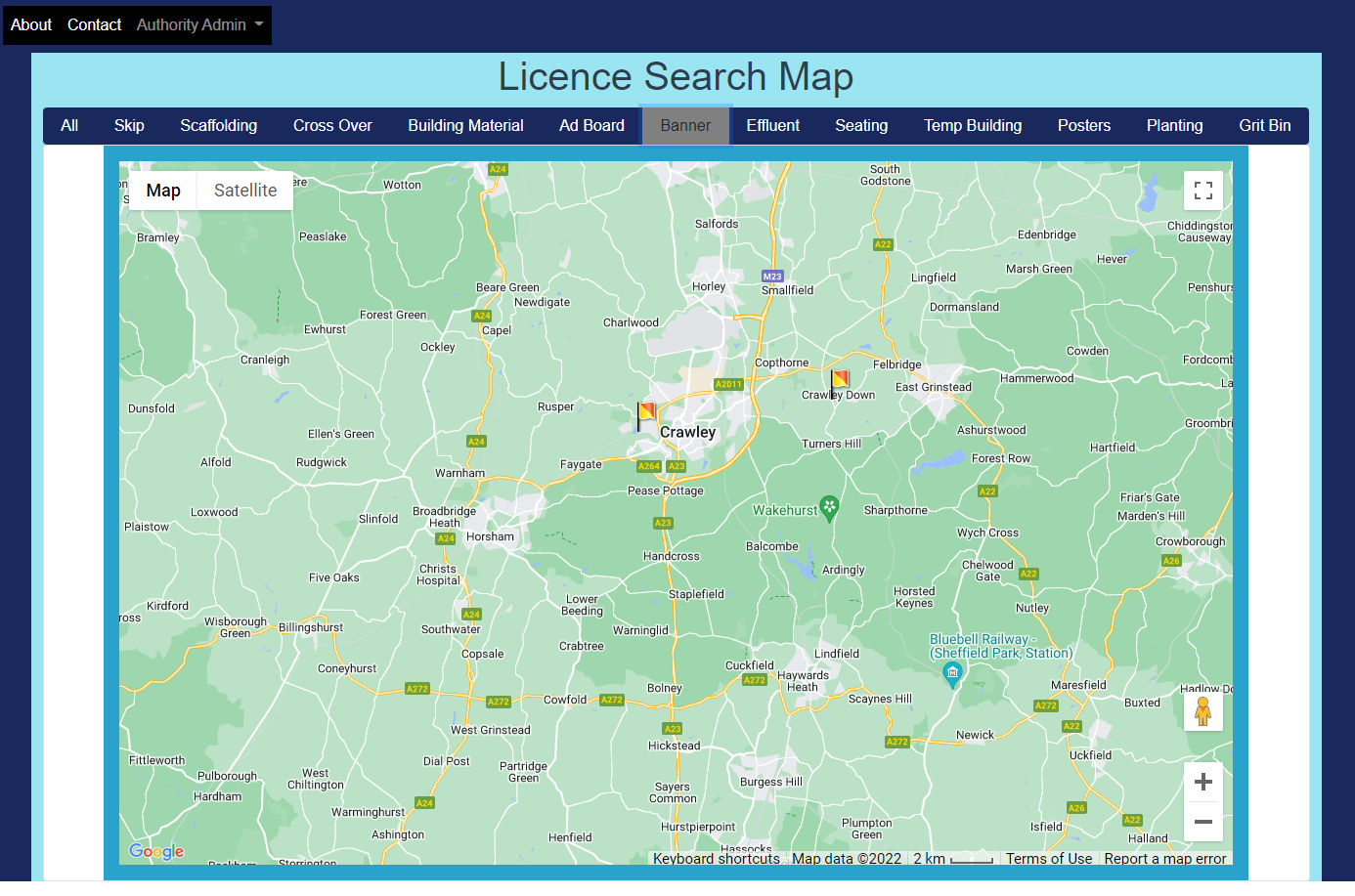
To see a map of licences with the matching licence type and postcode click the Locations tab. A Google Map is displayed with the markers showing flags for each licence with green flags for approved licences and a red and yellow flag for those still being processed for approval. See the image below.
Tips
Note that the map has controls to display in full screen, to zoom in and out, drag the map to display a different location and to display a street view. To see details of an individual licence right click on the flag and a pop up window will display.
Authority Dashboard
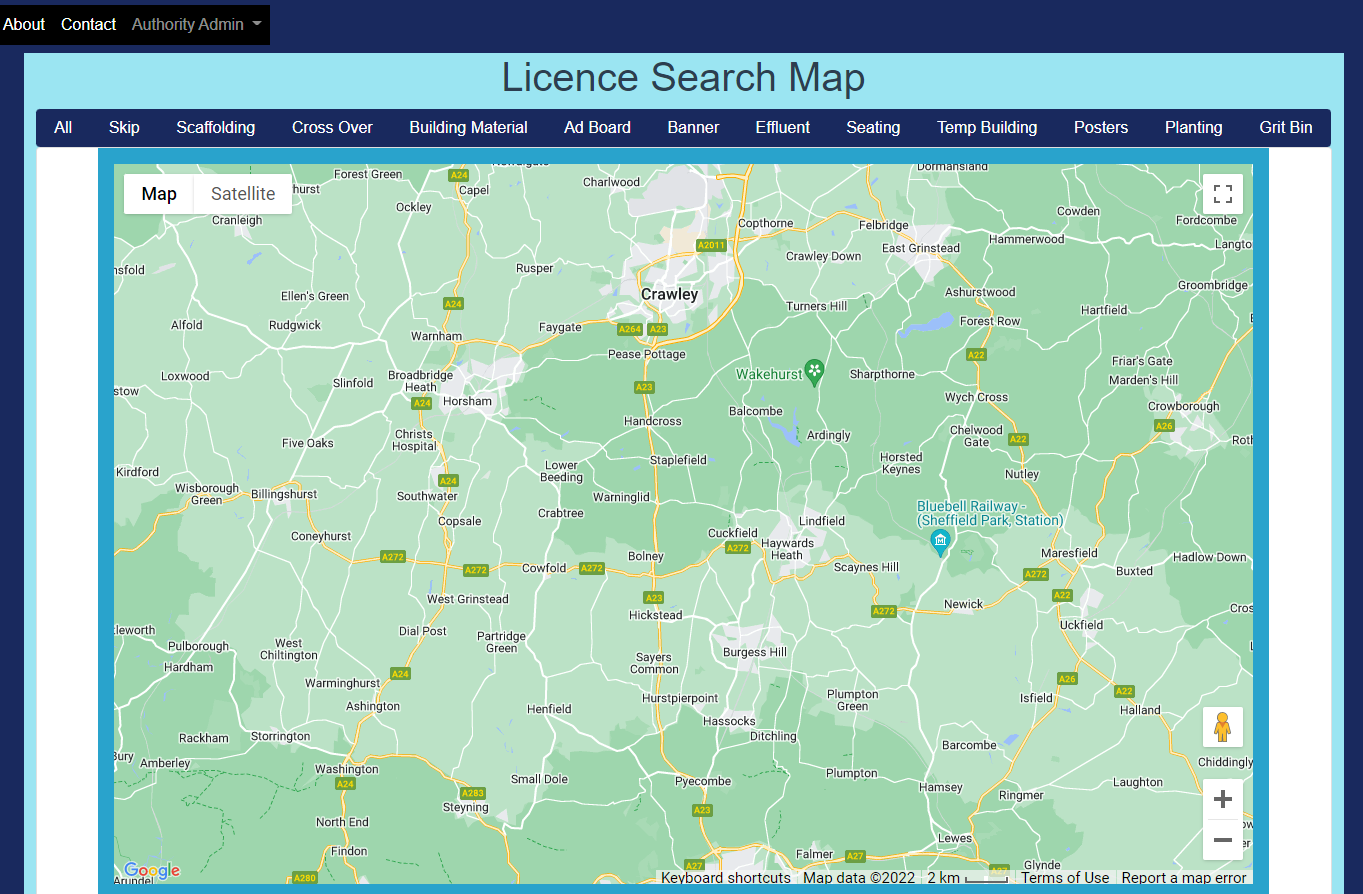
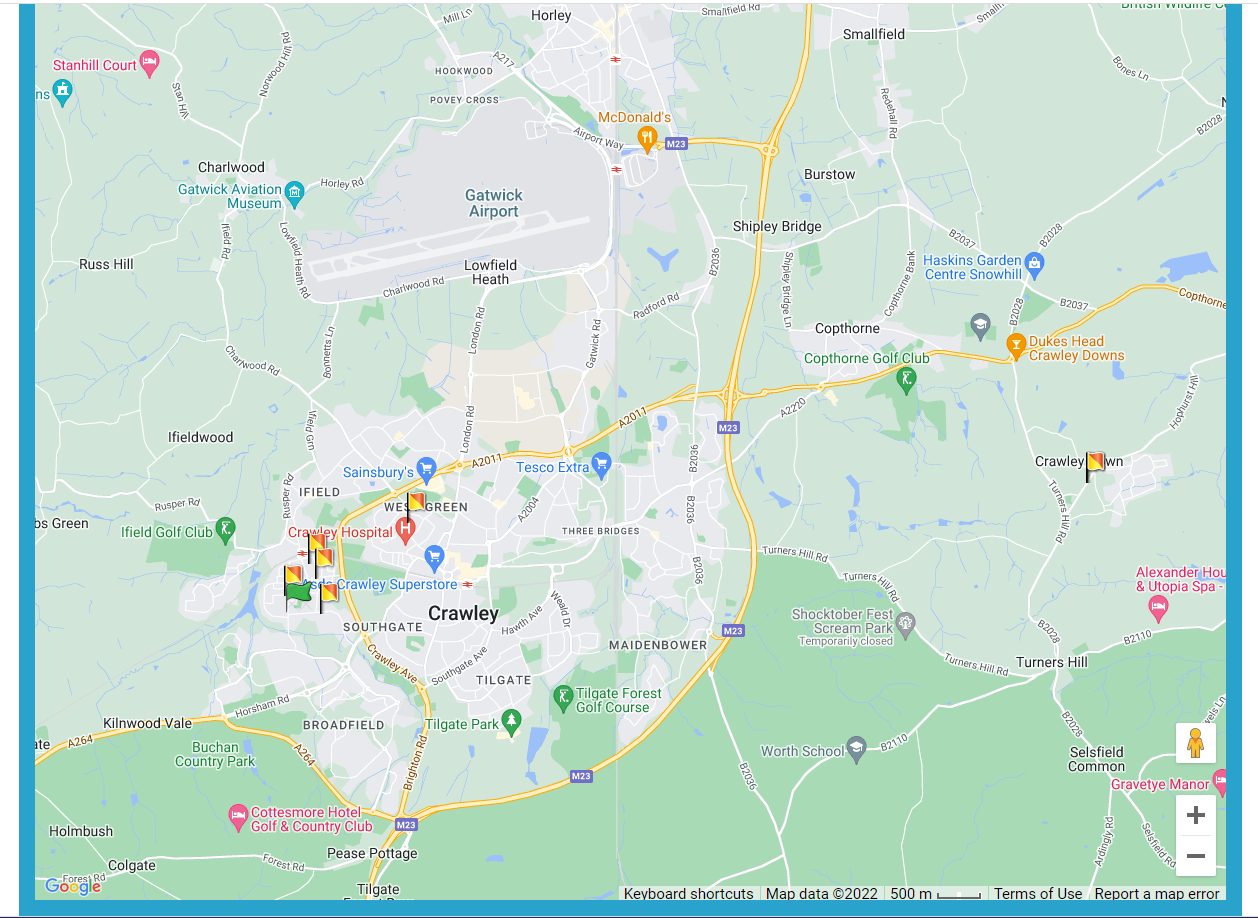
The Authority Dashboard has a selection bar at the top of the map.
- To display locations of a licence type click the button and the map markers will load onto the map.
Compare the map above and below to see markers shown for Banners in this example.
Open Licence Applications
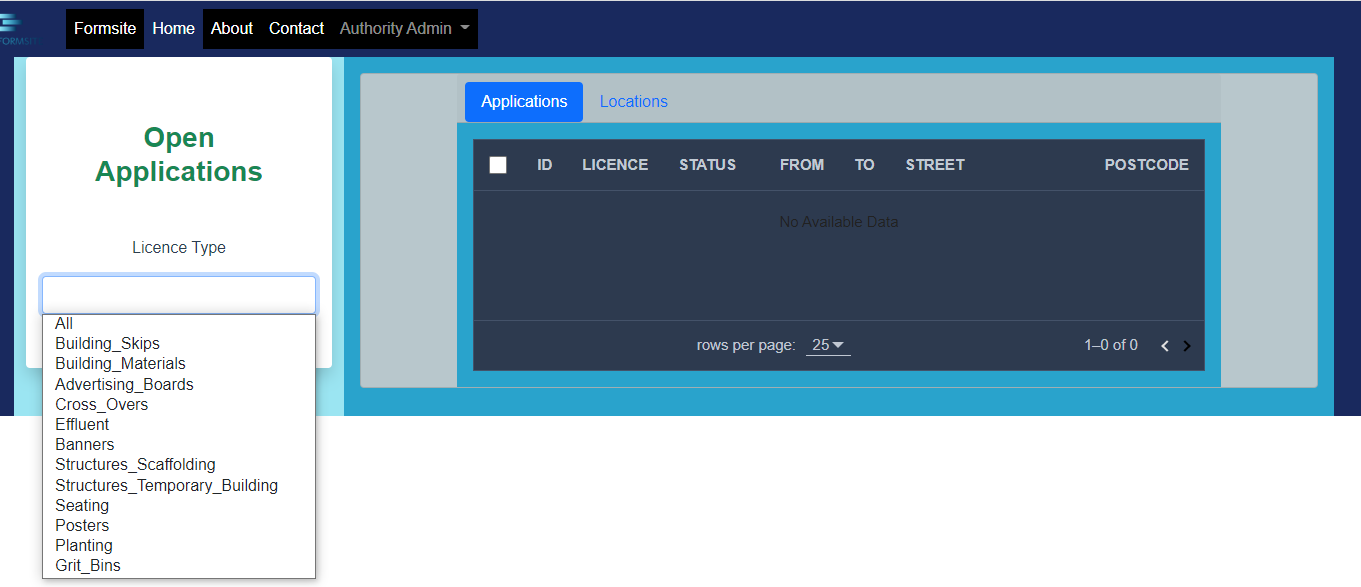
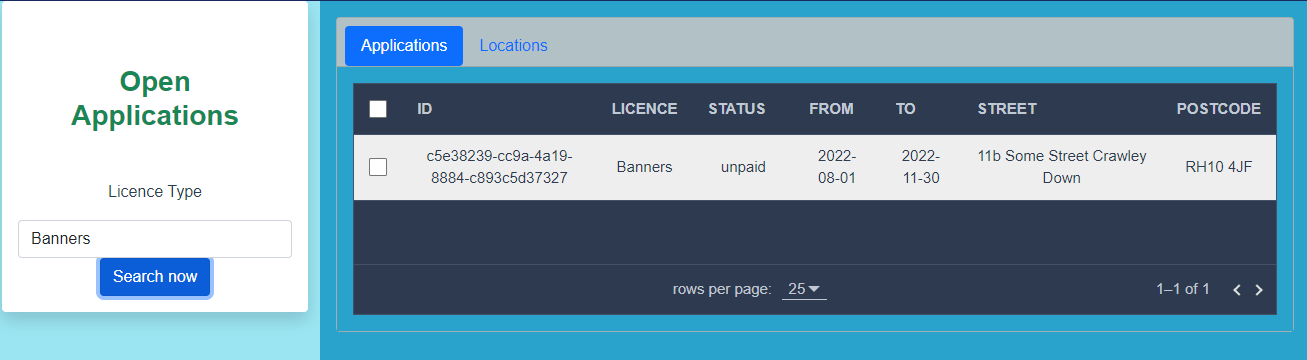
Open Licences is a useful page for seeing licence applications by licence type that have not yet been approved. Select a licence type from the drop down list and click the Search button to populate the grid. Select a row by clicking on it to open the details. See image below of the Open Applications page.
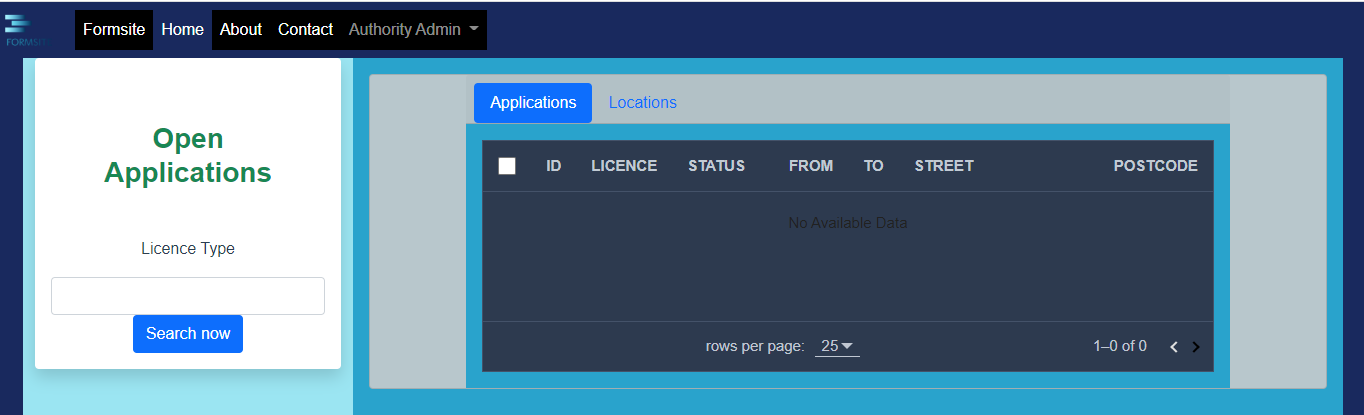
Select from the drop down list of licence types as shown below.
Click the Search button to populate the list of open applications as shown below.
Click on a row in the grid to open to the details from where updates can be entered and previous actions listed. See section below for more details.
Licence Detail
Click a row in the Open Applications grid will open to the Licence Detail. The top half of the page displays the licence application details.
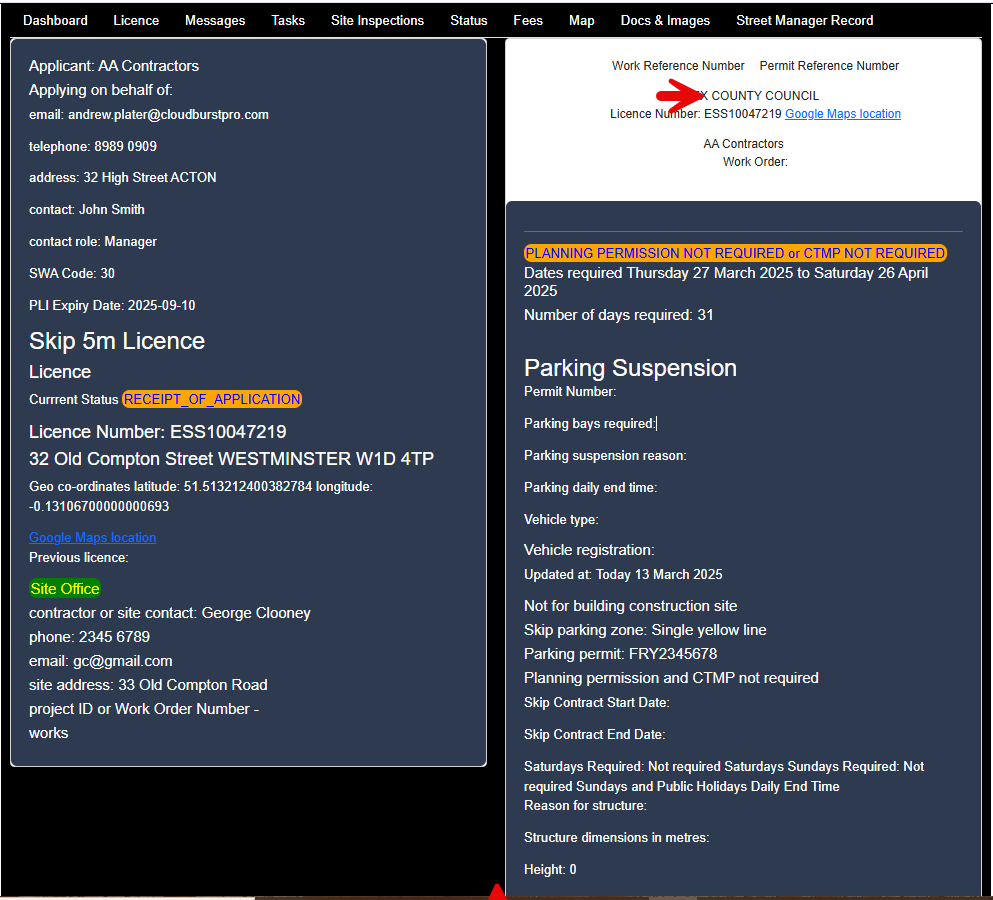
Licence Status shows a list of previous actions on this application
Update Application is a form to add a new action including approval
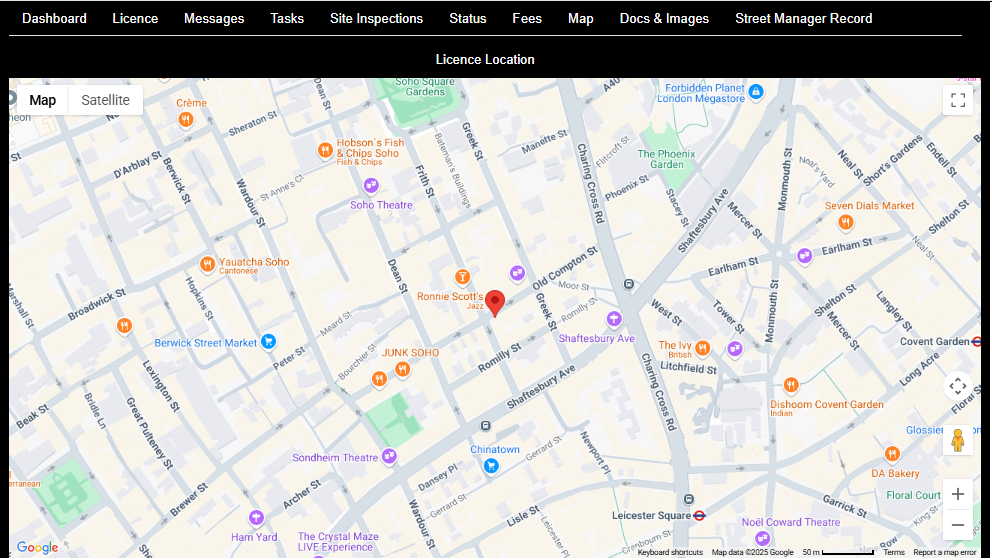
Licence Location displays a Google Map with the licence location centred in the map with a standard red marker.
Update Licence Application
Processing a licence application involves making progressive updates to two related components as part of a defined workflow:
- licence stages
- tasks to be completed for a stage
- multiple tasks may be assigned to a stage
To record any update to the application select the status that the application is to move to.
Tips
Even if the application status is not to change e.g. more information is required, enter the status from the drop down list as this information together with the date will be viewable by the applicant to indicate that the application is being actively processed.
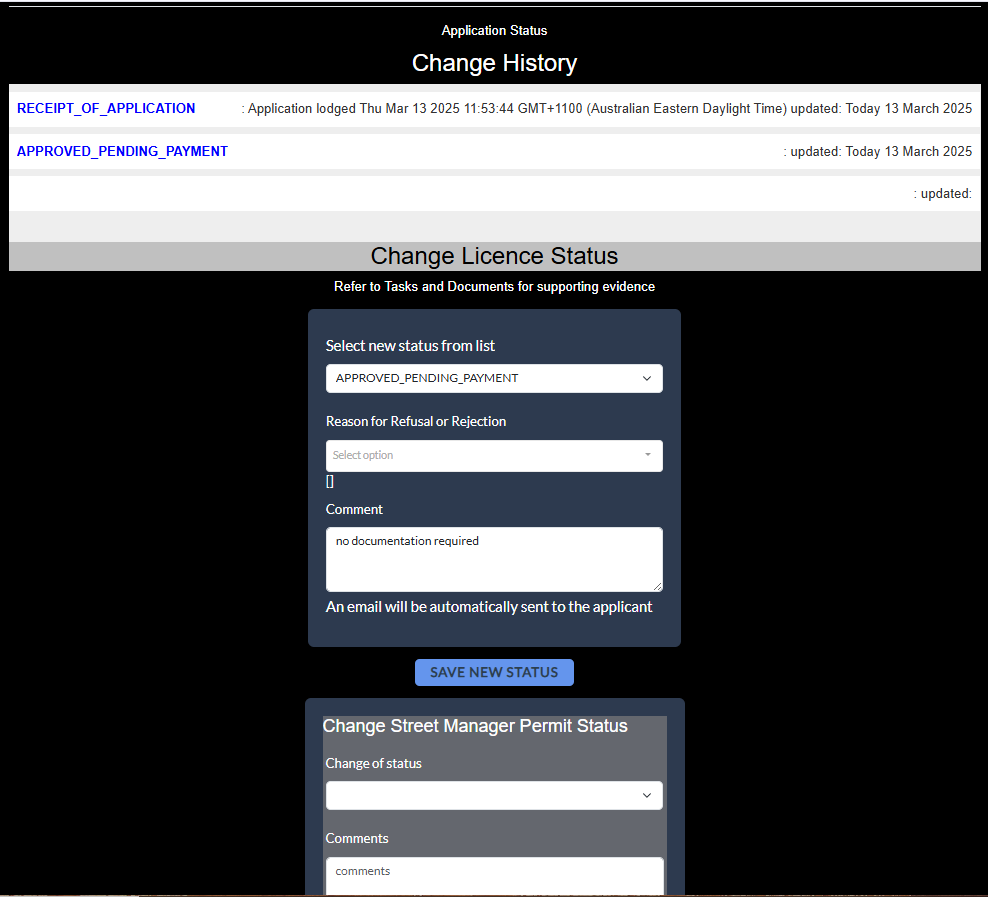
Licence status can be:
- RECEIPT_OF_APPLICATION
- PREWORKS_INSPECTION
- REFUSED_INCOMPLETE_DOCUMENTS
- REFUSED_DATES
- VARIATION
- WORKS_COMPLETE
- REVOKED
- APPROVED_PENDING_PAYMENT
- GRANTED
- RENEWAL
- COMPLETION_APPROVED
- COMPLETION_REJECTED_PAINT_SPILLS
- COMPLETION_REJECTED_DAMAGE
- REMEDIAL_WORKS_COMPLETE
- FINAL_COMPLETION_APPROVED
- EXPIRED
- REFUND_REQUEST
- CANCELLED
- RESUBMISSION
- PENDING
The following Licence status settings are controlled by the applicant:
- VARIATION
- WORKS_COMPLETE
- RENEWAL
- REFUND_REQUEST
- CANCELLED
- RESUBMISSION
- PENDING
Updating a licence stage will trigger the following actions automatically:
- licence status is updated
- a new status record is created in the Licence Status records
- a new set of tasks associated with the new status will be created in the Licence Tasks records
- a new message will be recorded aand sent to the application via the Messages sus system
- an email will be sent to the applicants email address notifyinng them of the status update
- if the licence status is GRANTED a pdf licence will be generated and stored permanently in cloud storage
- a link to download the licence will be emailed to the applicant
Licences that have passed their expiry will automatically be updated to the status of EXPIRED. They will no longer be viewable in General Search. Use the Expired Licence Search to retrieve the record.
Licence Status Tasks
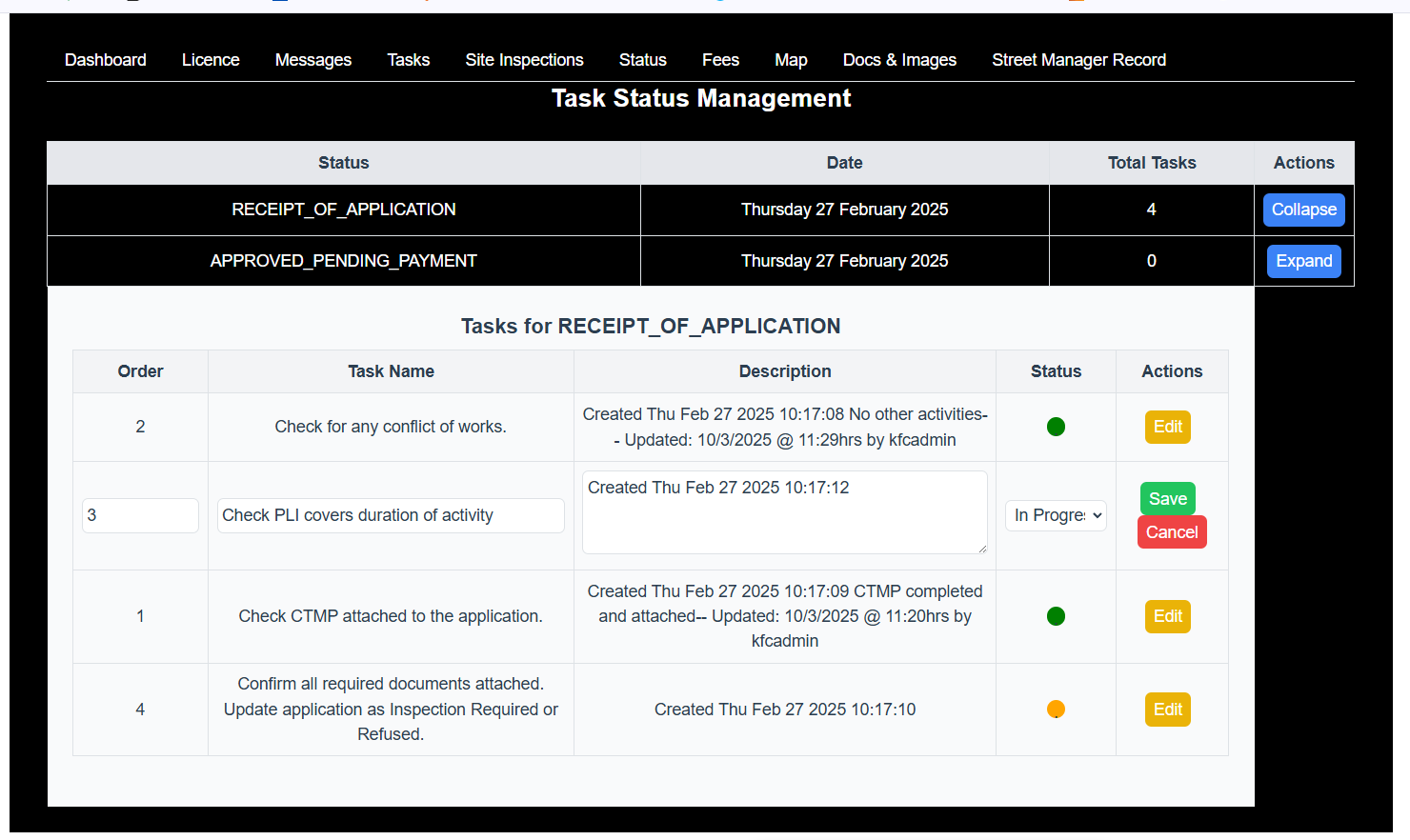 List of tasks for each Status
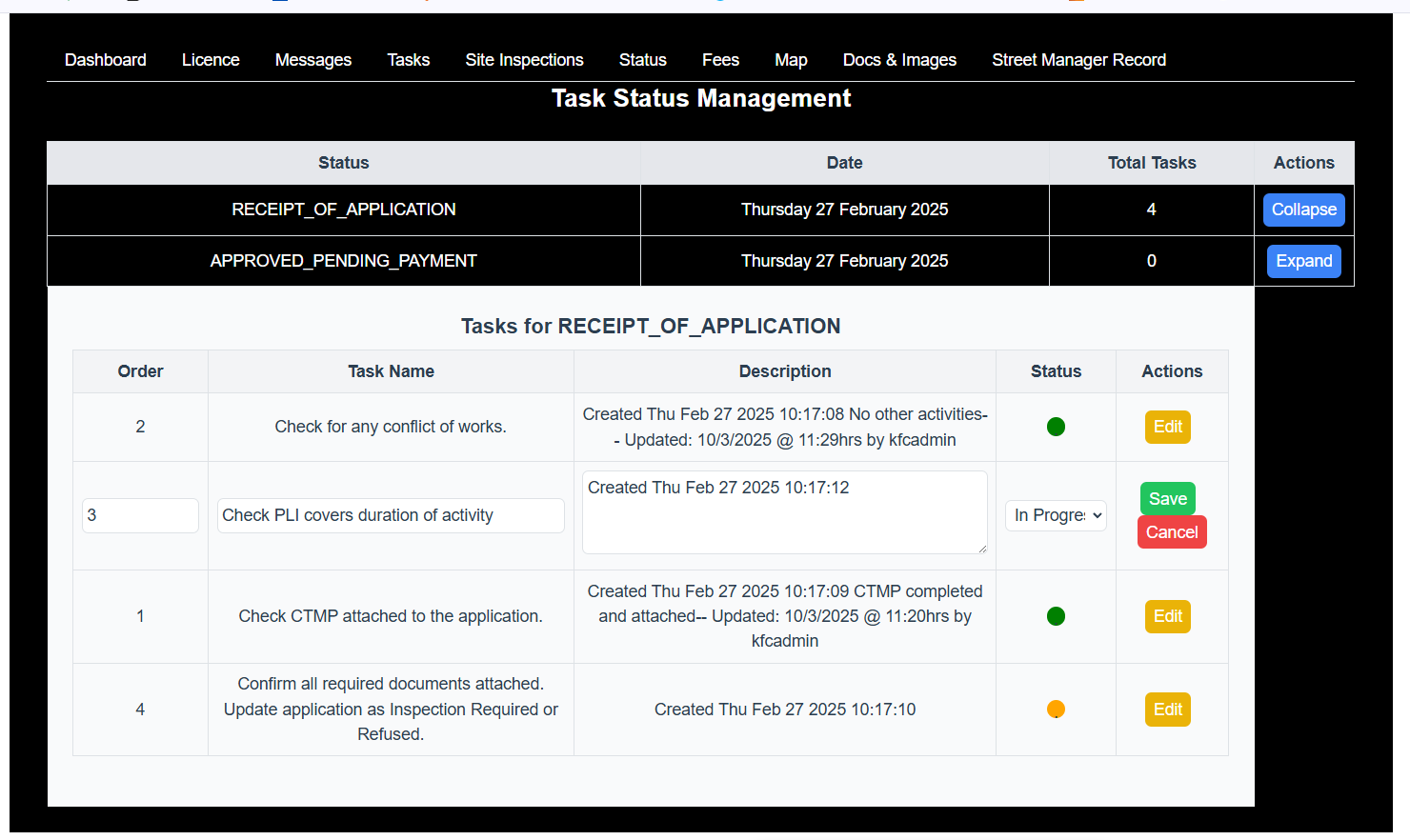
Comments
Use this text area to enter any information regarding your processing. This comment section will not be viewable by the applicant.
Date for next review
This is intended to be used for creating a task list to work from. Task List feature is not yet implemented.
Licence Documents
PDF Documents
View the list of pdf documents attached to this licence 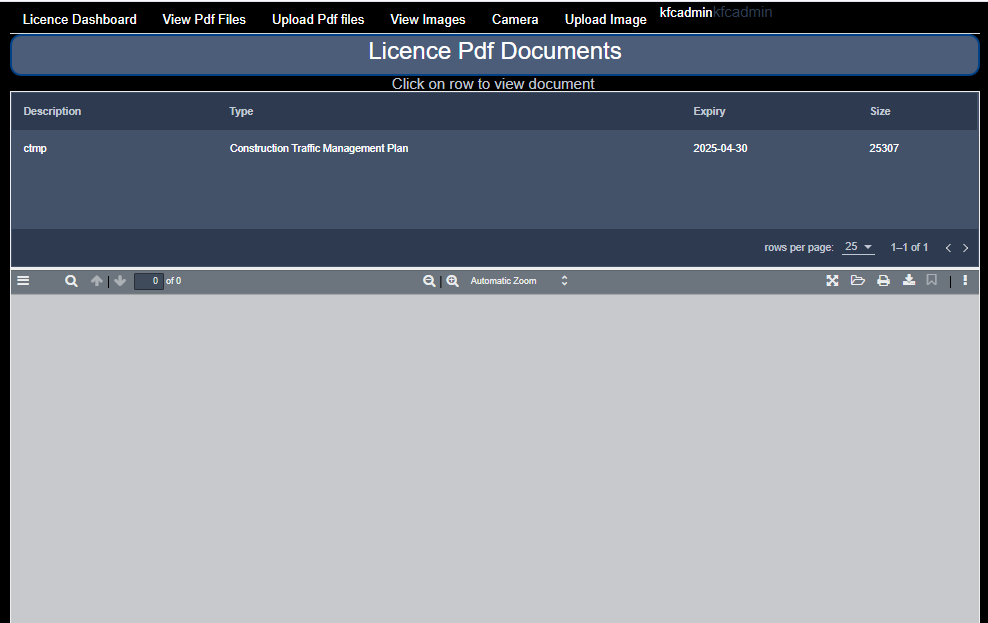
To view a document and print or save it to a local storage device, select the document by clicking on it in the list. 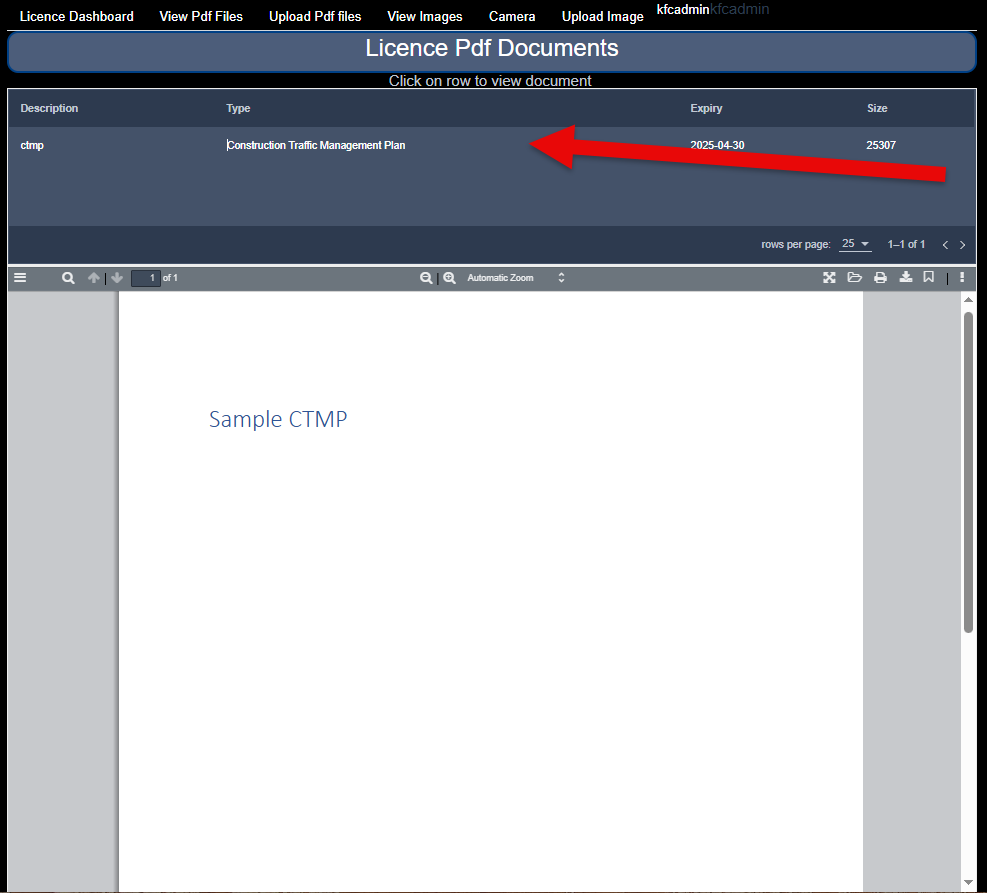
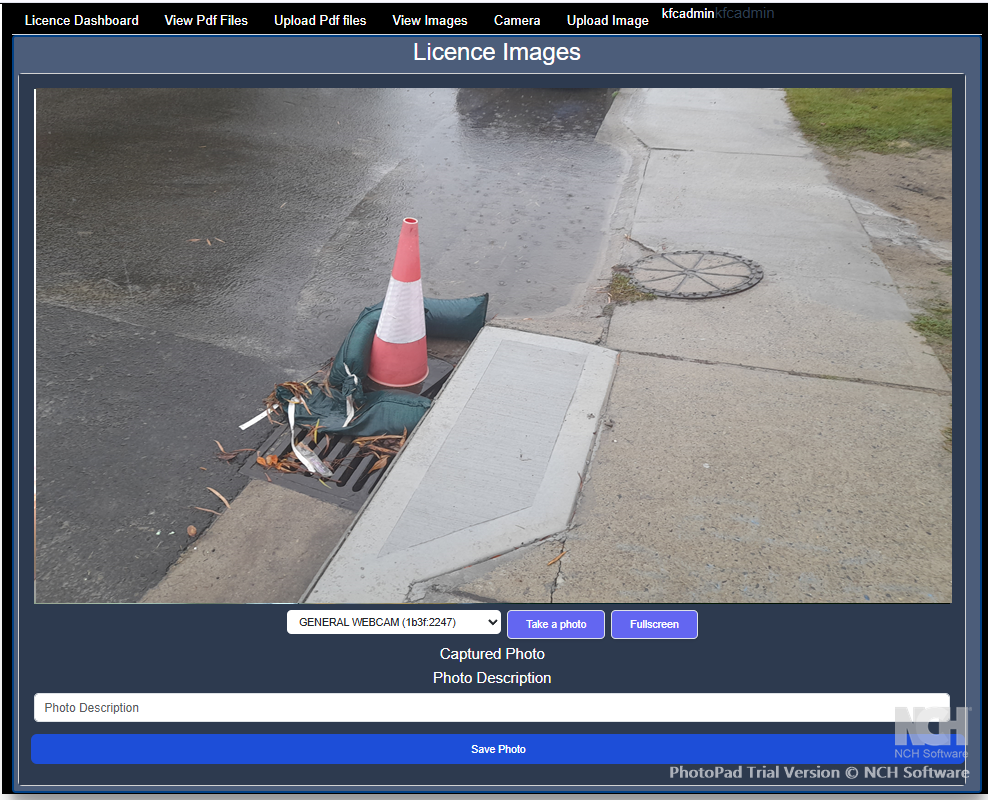
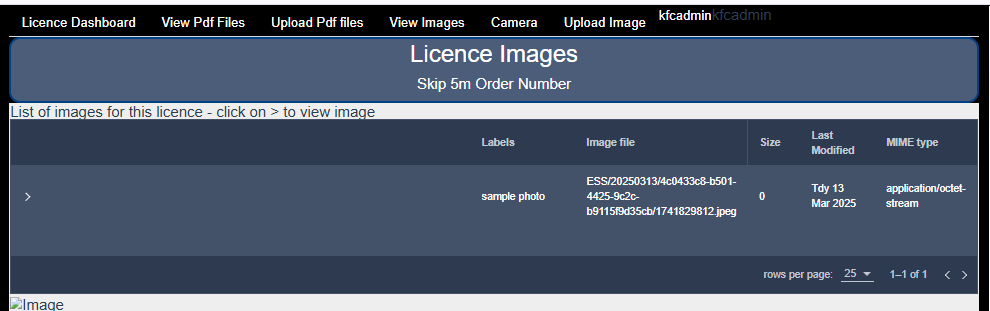
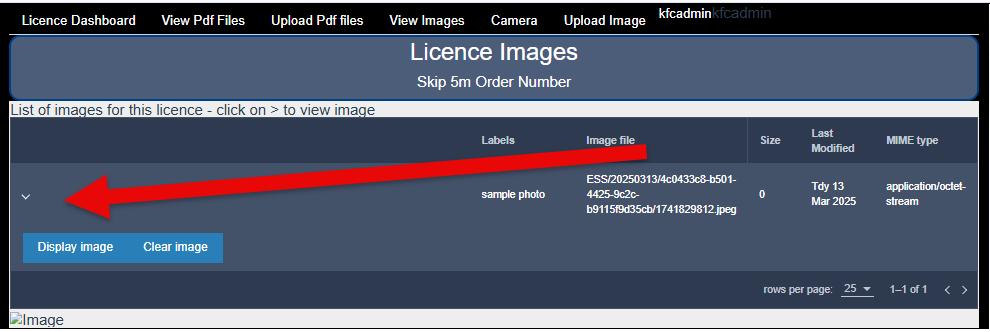
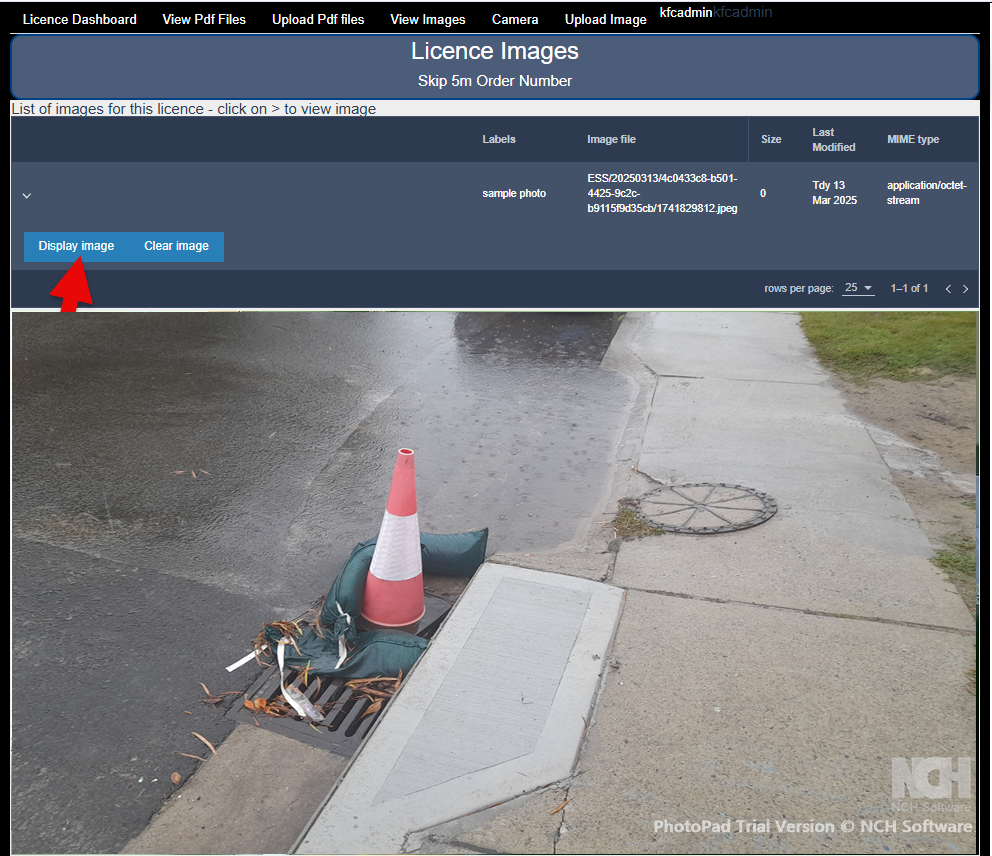
Licence Images
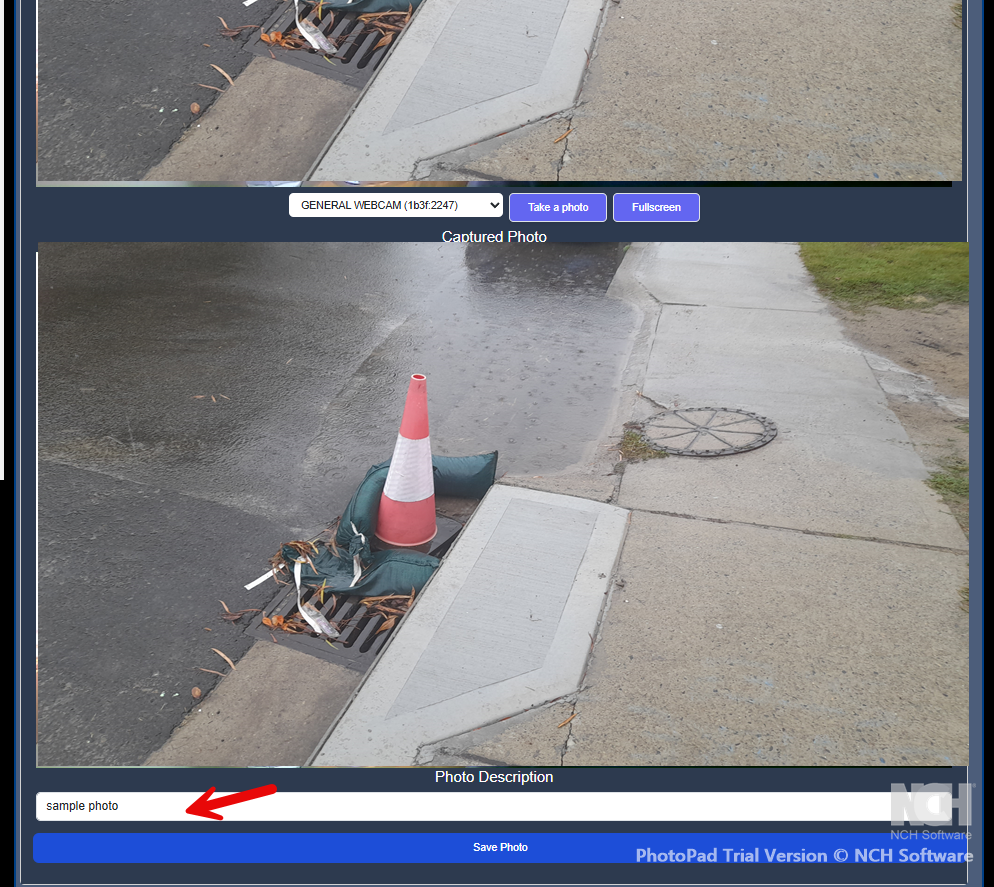
Using the camera on a device
Take a photograph with your device's camera and upload to the licence record.
Site Inspections
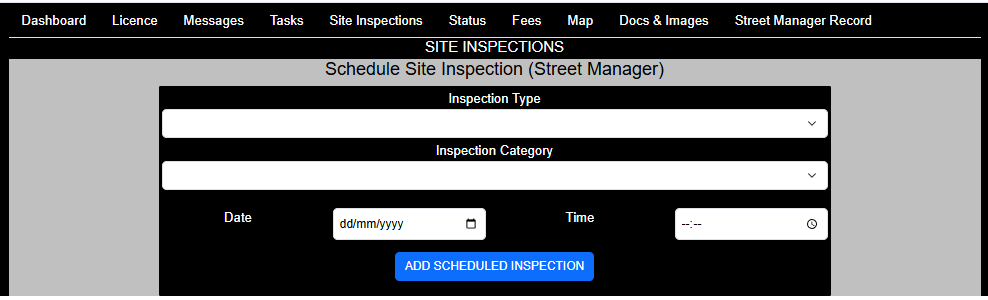
Schedule Site Inspection
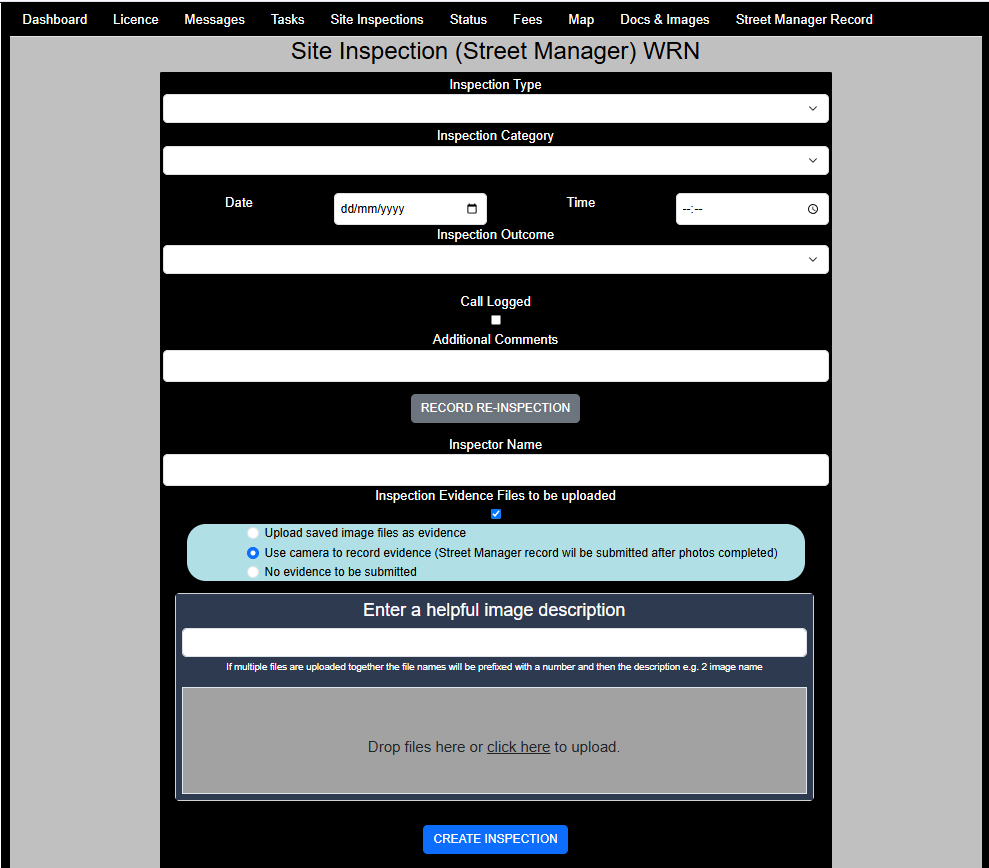
Record Site Inspection
View Previous Site Inspections
Street Manager
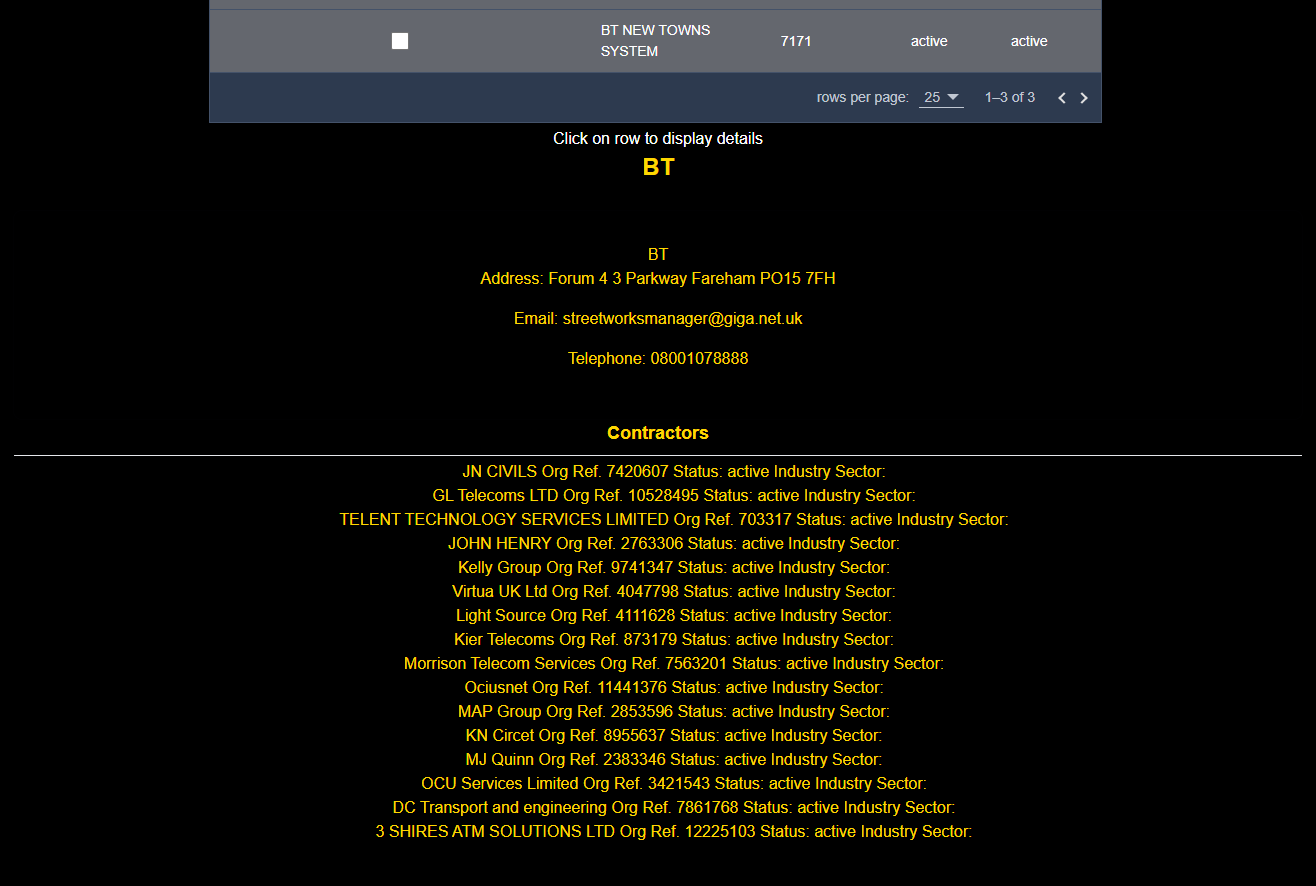
Organisation Search
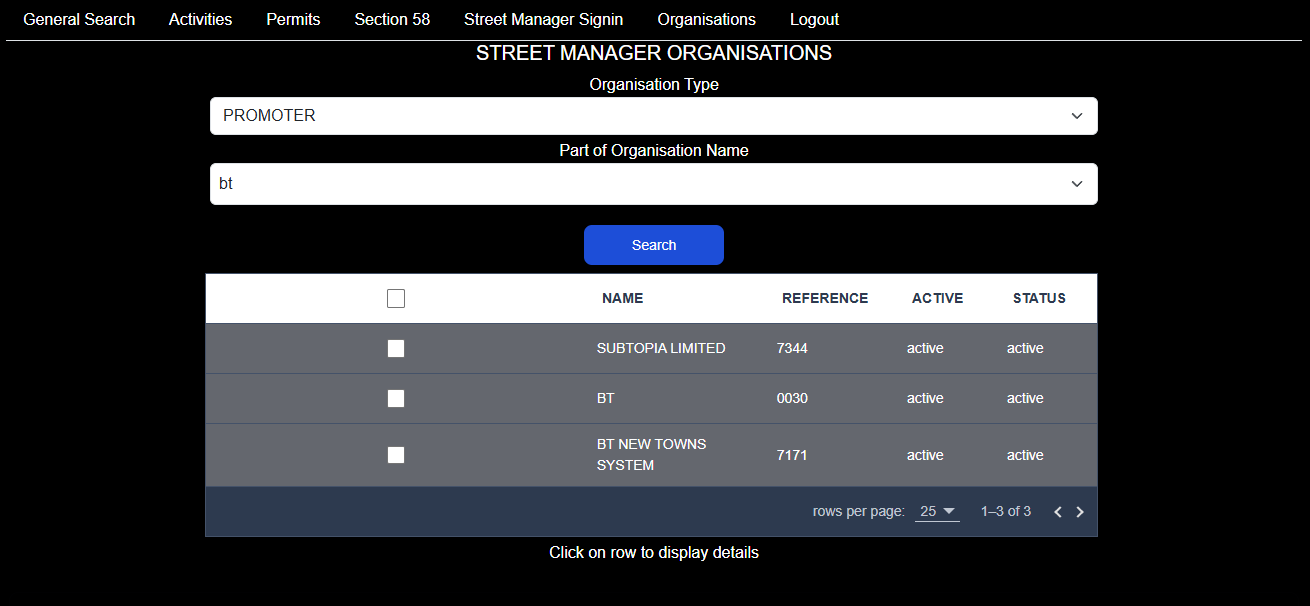
The Organisation Search pulls data directly from Street Manager.
- Enter the type of Organisation - Promoter, Contractor or Highway Authority
- Click the Search button to show a list of applicants that match your search critieria - see the image below.
- Click on the row that has the result details shown to view full details
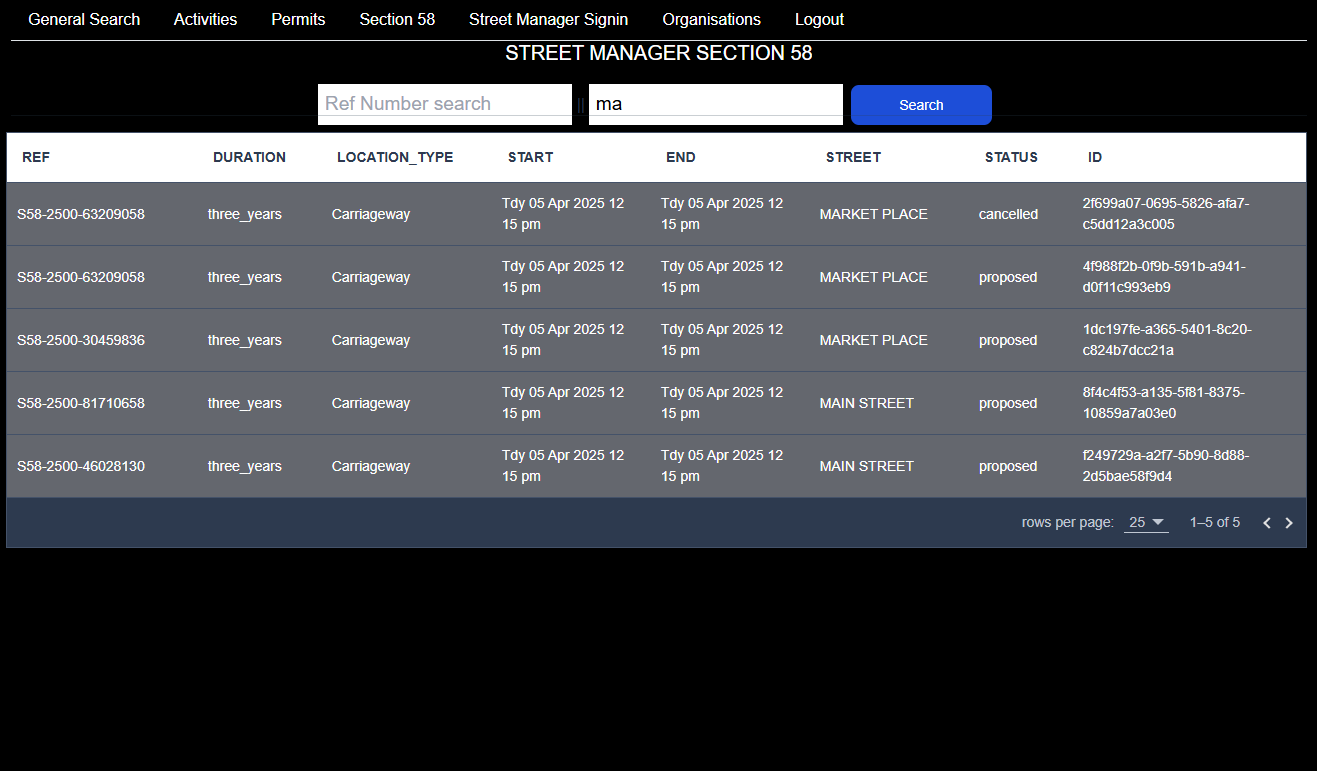
Street Manager Section 58
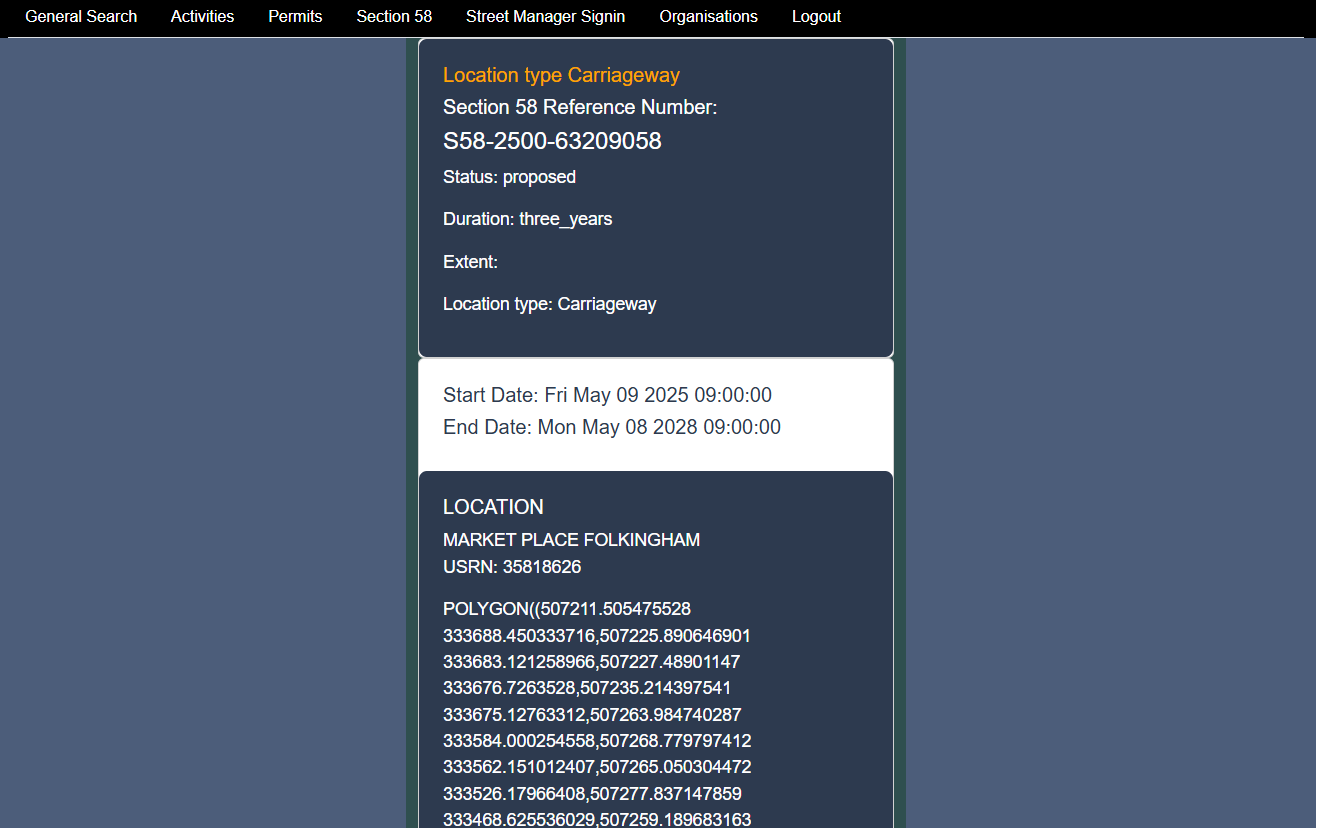
Click on a row to see more details
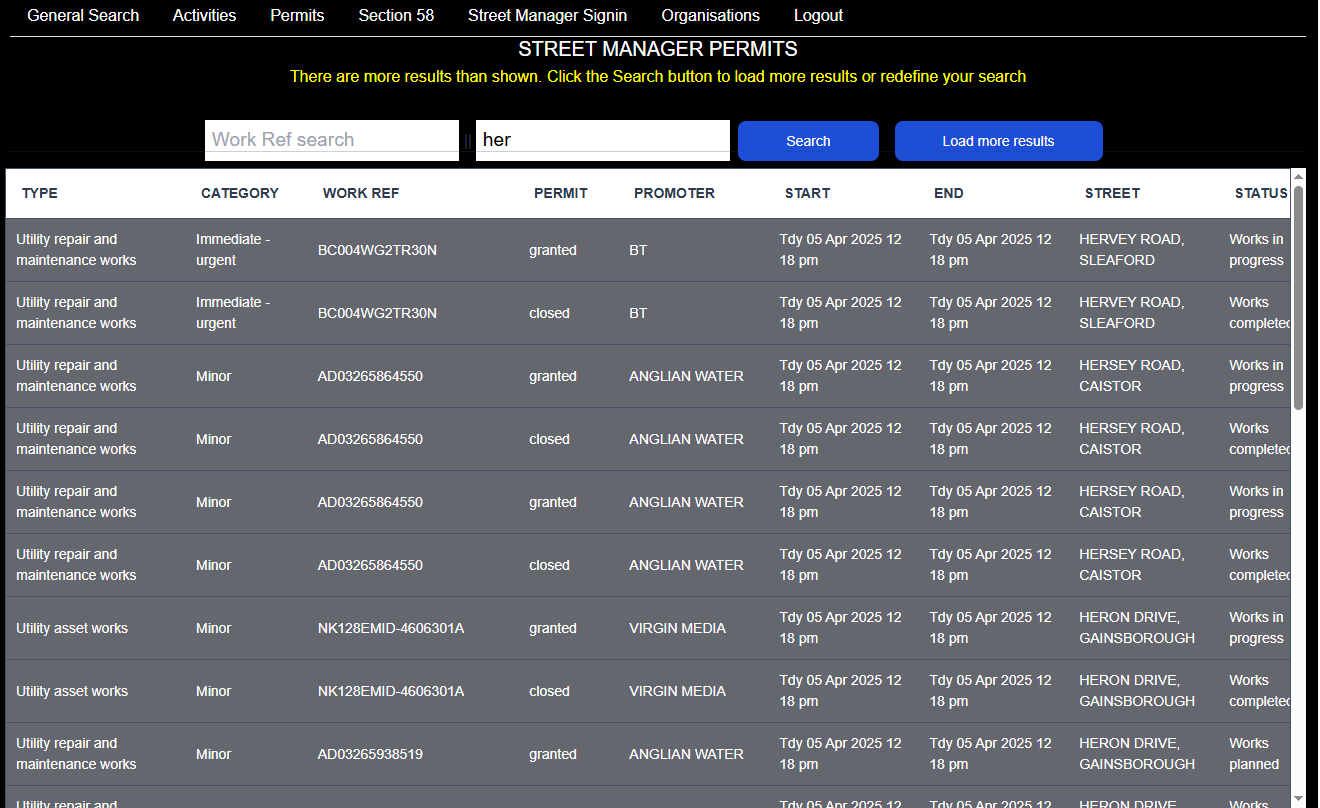
Street Manager Permits
Click on a row to see more details for a specific works
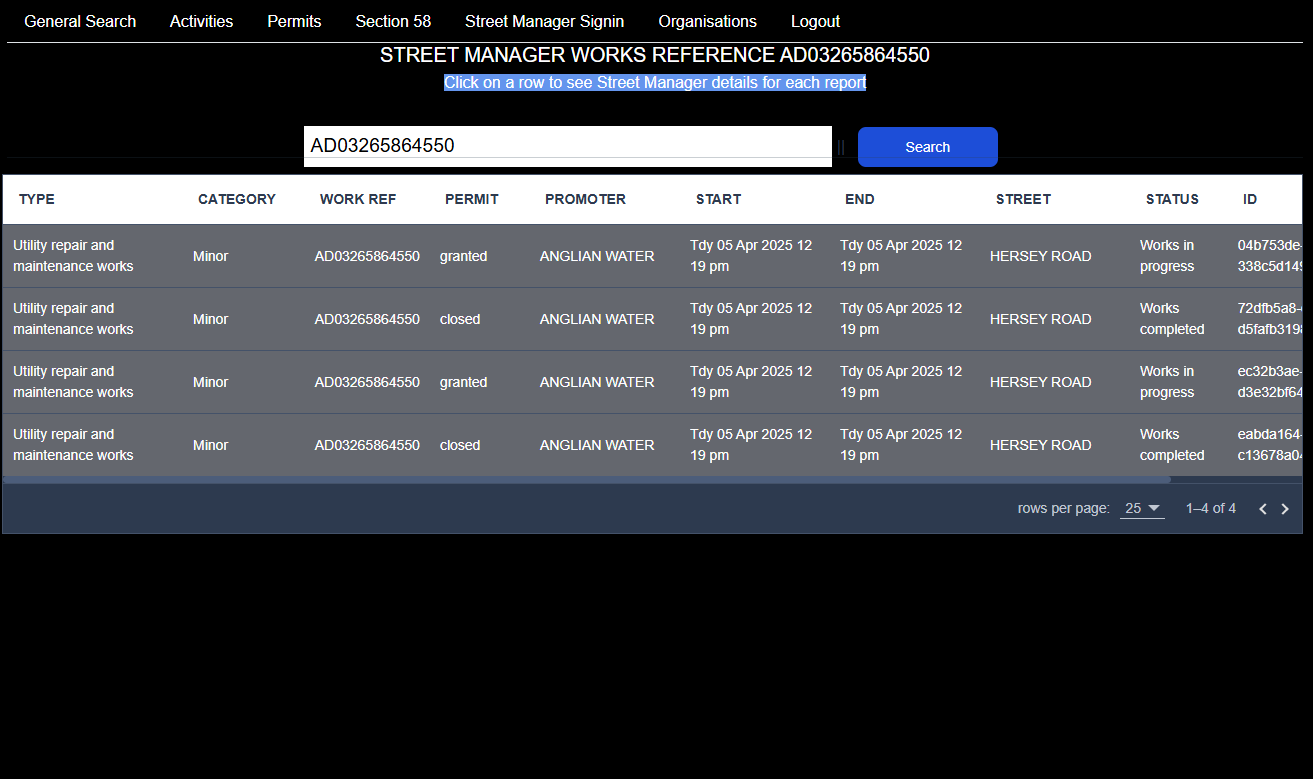
Click on a row to see more details for a specific permit
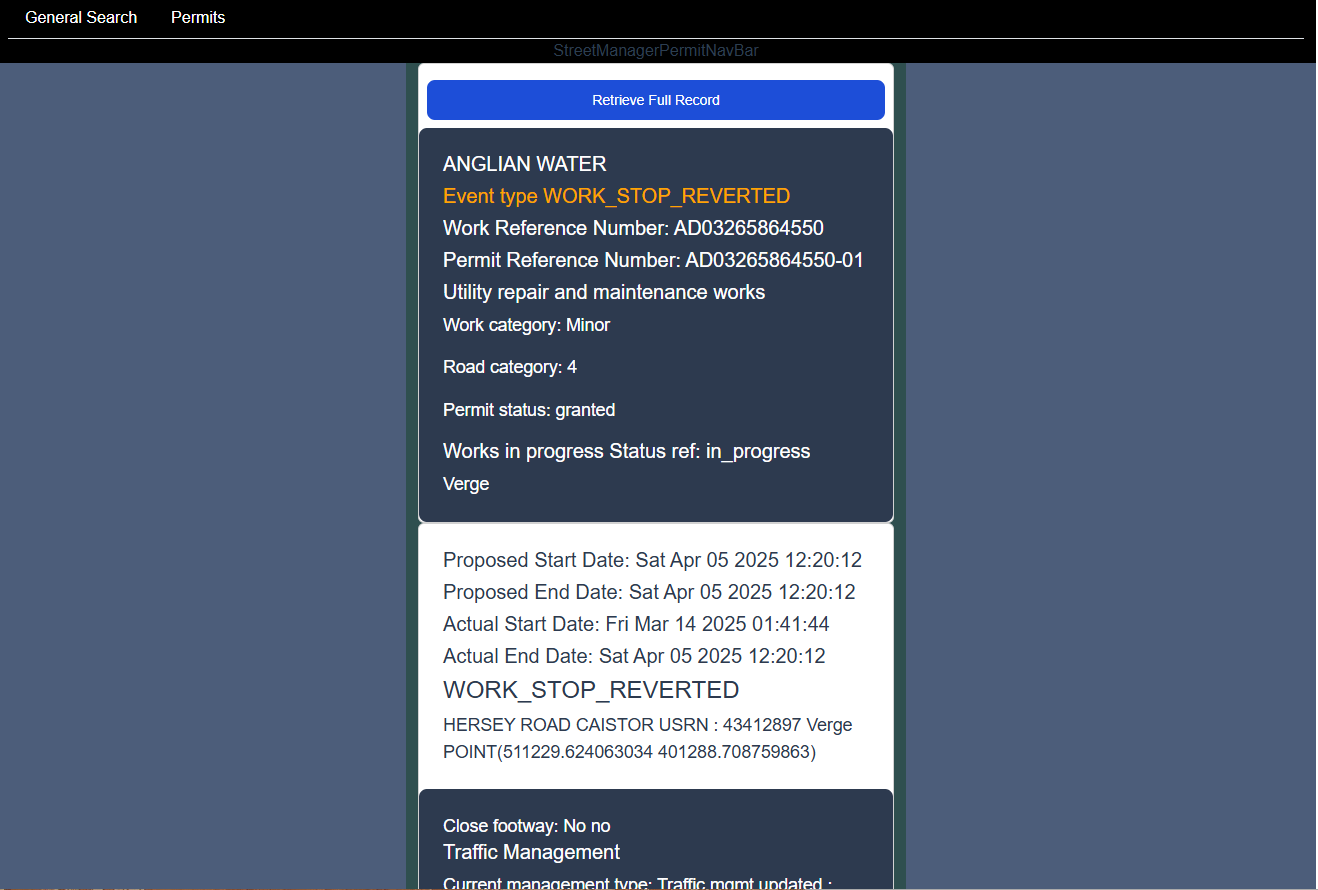
Something we missed?
Please get in touch via the Contact Page if you have ideas on how we can improve the documentation or functionality of the application.